
Help Center / Resource Allocation
The Resource Allocation board
Plan people across weeks, watch capacity, and publish the plan back to BQE CORE. · Managers · 11 min read
How the board reads#
People down the side, weeks across the top. Every number starts as your firm's real CORE allocations; the board adds a planning layer on top, shared by everyone at your firm who plans, so you can sketch the future without touching CORE until someone publishes.
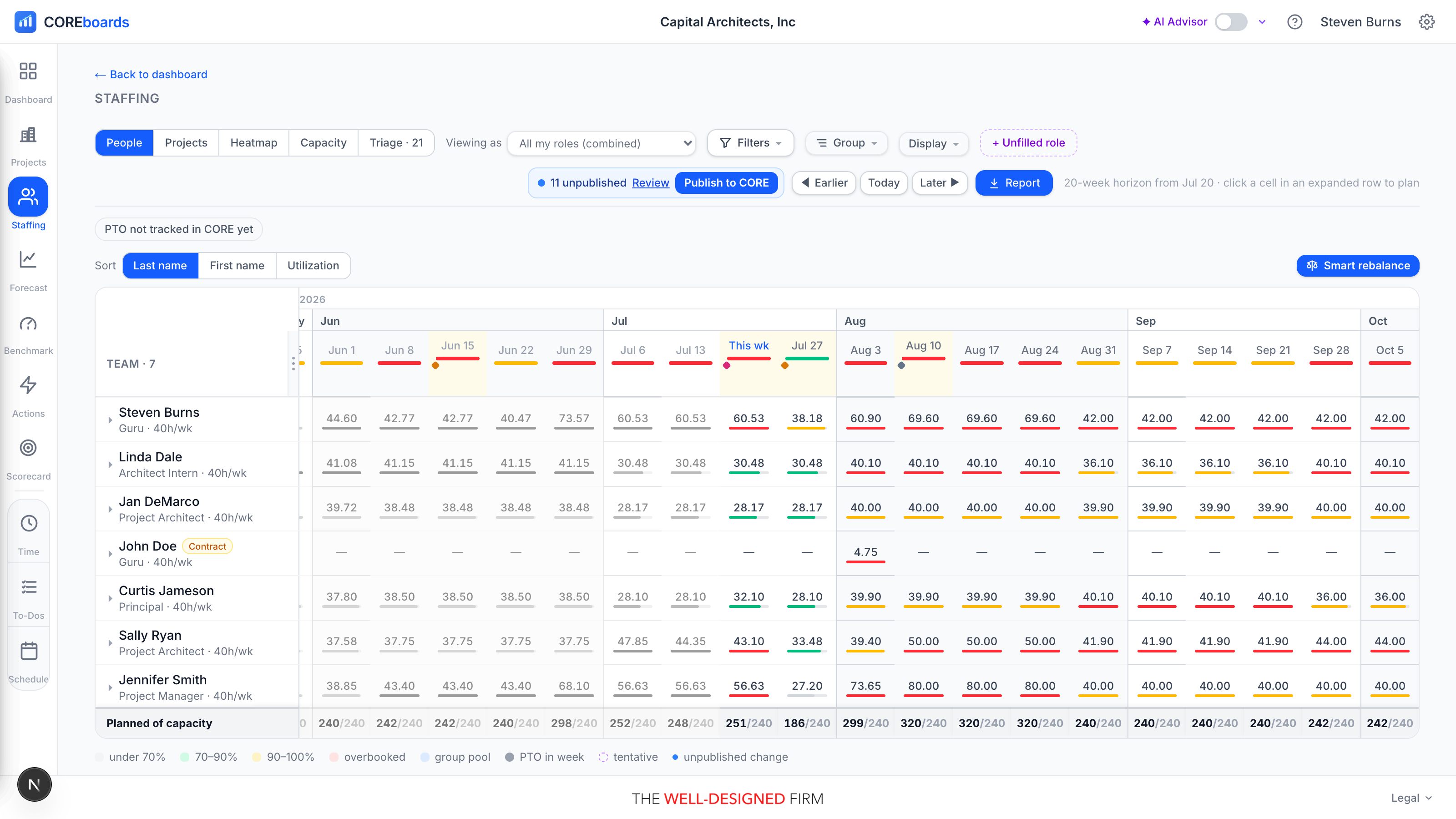
- This week is marked by date, and about eight past weeks sit to the left, read-only: scroll left to see history.
- Each person's utilization bar compares planned hours to their standard capacity: green is comfortable, orange is near capacity, red is overbooked.
- The hours ⇄ dollars toggle re-prices the same plan instantly using each person's rates.
Editing is for principals, studio leaders, and project managers (plus firm admins). Everyone else sees their own week in My Schedule instead.
Plan a week#
- Type hours into any week cell, or nudge by quarter hours with the cell's tiny ▲▼ arrows. Expand a person to split the week across projects, phases, and activities.
- Drag the fill handle — the small blue square on a selected cell's corner — across the coming weeks to repeat those hours (like filling in a spreadsheet). The weeks it will fill highlight as you drag; it works on phase cells and activity sub-rows alike.
- Mark a week tentative when it's a maybe: tentative cells render dashed and stay out of firm commitments until confirmed.
- Add people, phases, or placeholder roles (a future hire, an unnamed consultant) from the row menus, or create a new phase in CORE without leaving the board.
Nothing you type here reaches CORE yet, but it is saved as you type, and everyone at your firm who plans sees it on their next load. Unpublished cells carry a blue dot so you always know what CORE hasn't received.
Publish to CORE#
Edits collect as pending changes, and the list is the whole firm's, not yours alone. Publish opens a review list showing who last changed each item: keep, hold, or discard each one, then confirm. COREboards writes the plan to CORE as real allocations and shows exactly what was created, updated, or retracted, reconciled so nothing double-counts.
- A publish sends everyone's pending changes, not only the ones you made, except the ones you hold. Hold is remembered in your browser only, so it doesn't stop a colleague's publish from sending that change.
- Held items stay unpublished and keep their blue dot for next time.
- If two people type into the same cell, the last save wins, with no warning.
- The grid doesn't redraw on its own. Within a minute of someone else changing or publishing the plan, a note at the top of the board says who and offers Reload. Reloading never discards your changes: they were saved the moment you made them.
- Only one publish runs at a time per firm. Click Publish while a colleague's is running and you follow theirs instead of starting a second.
Five lenses, one plan#
The lens control re-reads the same plan six ways. Your pick is remembered per firm.
- People: who is booked on what, with capacity heat per person.
- Projects: the same weeks grouped by project, with fee-burn bars and per-person weekly load bars. The bar reads three ways, picked in Display → Fee bar shows: Billed (what CORE has invoiced against the contract), Projected (logged plus planned work against the contract), and Budget (the same logged-plus-planned measured against the phase budget CORE holds, with the contract marked on the same bar — a project can sit comfortably under its fee and already be over the hours it was budgeted). Each phase's row also carries its CORE schedule as a striped bar drawn to the day: green spans the scheduled dates, red marks hours planned outside them, and milestone diamonds sit on the bar at their exact day. Hover the bar for the phase's real numbers; editors can click it to change the start or end date, publish the new dates to CORE, and manage the phase's milestones.
- Heatmap: every cell colored by load (hours, percent, or both) to spot over- and under-booking at a glance.
- Capacity: the 12-month outlook: when do we run out of room, and when do we run out of work? Toggle tentative pursuits in and out to see what winning them does.
- Triage: every flag your team has raised, gathered for Monday.
- Unscheduled: phases you budgeted but never put on the calendar. See below.
Budgeted but not scheduled#
Budgeting a project does not schedule it. A phase can carry 400 planned hours with an empty calendar, and while it does, every margin projection reads it as costing nothing more to finish. The Unscheduled lens is the firm-wide list of exactly that: phases whose budget still owes the calendar hours, worst first.
- The number is planned minus logged minus scheduled: what the budget said, less the work already done, less what is already on the board from this week on. A phase halfway through shows what is still owed, not its whole budget again.
- Staff… on any row spreads those hours across the phase's schedule weeks, weighted by who actually has room. Nobody is pushed past capacity, and anyone who does not fit is reported rather than quietly overbooked.
- Tick several rows and Staff selected does them in one pass. Each phase spends the capacity it takes before the next one is planned, so two phases can never book the same free Tuesday.
- A phase with no CORE schedule dates can be seen here but not staffed: there is no window to spread across. Set a start and end on the phase first.
The same offer appears where you are already working: an amber +Nh unscheduled chip on the phase's row in the Projects lens, and a Schedule these hours button under the hours on a project's Team & Budget tab. All three run the same check and show the same preview before anything is written.
Budgets and the board: which one changes the other#
Budgets and allocations are two views of one number, and it saves a lot of confusion to know which direction changes which.
Editing a budget changes what the board says is owed
A project's Team & Budget tab and this board read the same budget record in CORE, not a copy of it, so there is no sync step to run and nothing to re-publish. Raise a phase from 80 hours to 100 and the board asks the calendar for 20 more the next time it loads; lower it and the gap shrinks the same way. That figure is always planned minus logged minus scheduled, so a phase already half burned shows what is still owed rather than its whole budget again.
Scheduling people never rewrites your budget
The traffic only runs one way. Publishing a plan writes allocations to CORE and never budget lines, so a phase budgeted at 80 hours stays budgeted at 80 whether none of it or all of it is on the calendar. What changes is how much of it is still owed. Your budget is the plan; the board is measured against it.
If you spot a COREboards line inside a CORE budget
BQE CORE has a setting of its own called Budget-Allocation sync, separate from COREboards and switched on inside CORE. Where a firm uses it, CORE can copy an allocation into that phase's budget as an extra service line carrying the description COREboards put on the allocation: [CB] COREboards plan, followed by a week date.
Read that line as a reflection of a schedule COREboards published, not as something a colleague typed into the budget. The [CB] marker is COREboards' own, stamped on every allocation it creates so it can recognize its own handwriting coming back. Those lines are left out of every planned-hours figure COREboards calculates, so your budgeted total never climbs just because a plan was published twice.
Moving phase dates does move the schedule
One budget-side edit reaches the calendar on its own: change a phase's start or end date and CORE moves that phase's allocations to match. The hours stay with the person, but the weeks they sit in shift. It is worth a look at the board after any phase-date change, so nobody finds their work has quietly slid a fortnight.
Milestones on the board#
A milestone is a dated marker on a phase — a client design review, an approval gate, a deliverable going out, an internal pin-up — set in the project's Fees & Schedule tab or right here on the board. Weeks with one are tinted amber in the week headers of every lens, with the week's milestone diamonds underneath; hover them to see what lands that week, on which project and day. Load-up weeks read at a glance while you allocate.
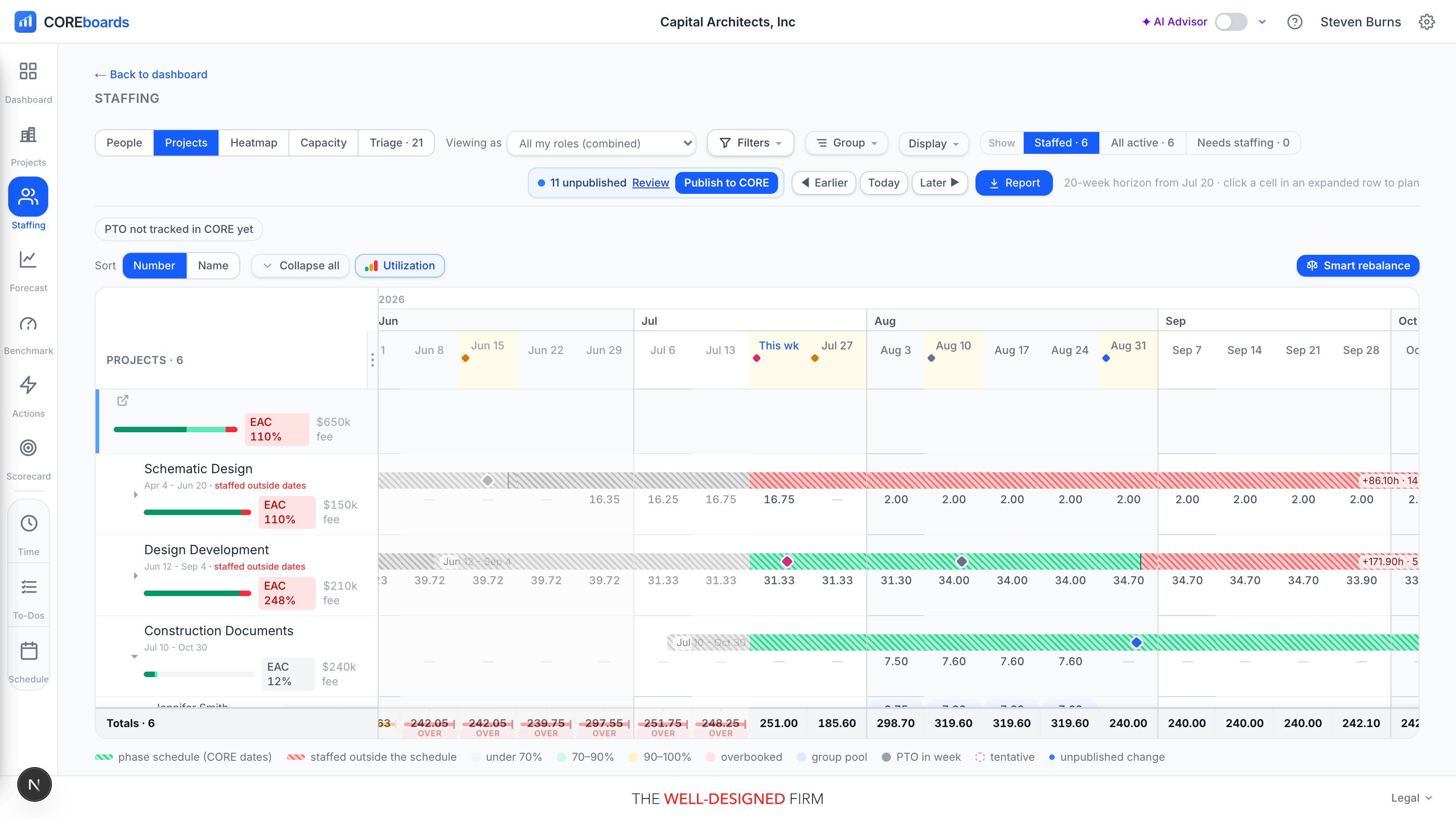
- In the Projects lens each milestone also rides its phase's schedule bar at its exact day. Click the bar to add or edit milestones in place — rename, redate, retype, recolor, mark done with the ✓ — the same editor Fees & Schedule uses.
- Every week header already carries the per-week Smart rebalance button, so staffing up a milestone week is one click from seeing it.
- Publish a schedule change and the phase's open milestones move proportionally with the new dates; done milestones stay put as history.
- The same milestones reach everyone: each teammate sees their projects' milestones in My Schedule, leaders get the next two weeks' worth in the Monday email, and the AI Advisor reads them alongside the plan and flags a milestone week that's thin on hours.
Flags and triage#
Anyone can flag their own week (from My Schedule); editors can flag any cell. A flag becomes a CORE to-do for the phase's manager and lands in the Triage lens, so problems surface in one place instead of hallway conversations.
- Resolving the to-do in either app clears it everywhere, and the person who flagged is emailed when it's resolved.
Fixing one thing: focus sessions#
A focus session narrows the board to the one phase, project or person you came to fix. Everything else leaves the page, not just fades, and the totals are the subject's own. A bar across the top names what is wrong and replaces the usual controls.
- Open one from your dashboard's list (the Fix plan or Rebalance button on a row), or from any row in the Triage lens. Every Triage row now has its fix: Rebalance, Fix plan, Plan it, Publish, Assign or Open.
- Edit as usual. The grid, the fill handle and Smart rebalance all work inside a session.
- Done publishes the changes you made to that subject, and only those, then takes you back where you came from. Publishing carries on in the background, and the row on your dashboard is marked handled.
- Leave, or press Esc, goes back without publishing. Your edits stay on the board as unpublished changes, as they always have.
- A session replaced the old Focus mode display setting, which dimmed other projects but left them on the page.
Smart rebalance#
Smart rebalance proposes a leveled version of a week: it moves hours from overloaded people to teammates with room, within the same phase. You review every move before anything publishes; it never writes on its own.
- Set Give to: Same role to keep moved hours on people who share the overloaded person's CORE title — the review then groups everyone by role, so you can see who sheds and who covers within each skill set. People without a title in CORE only cover for each other.
What counts as capacity#
Capacity counts active employees by default. In Settings, a firm admin can also count vendor resources: contract employees are on by default, outside consultants are off. Ghost records (people no longer in CORE) are always excluded.
Can't find it? Email support, or use Bugs & Requests in the app's gear menu.