
Help Center / Game Plan
Game Plan
Turn each person's allocated week into a day-by-day plan your team can log against. In beta. · Managers · 8 min read
What it is#
Game Plan (at /gameplan) is a day-level planner for one week. The Resource Allocation board answers the weekly question: who spends how many hours on what. Game Plan sits one layer under it and answers the daily one: when in the week does that work happen, and on which task. Everything Game Plan wears a BETA badge: it is fully working, and still growing.
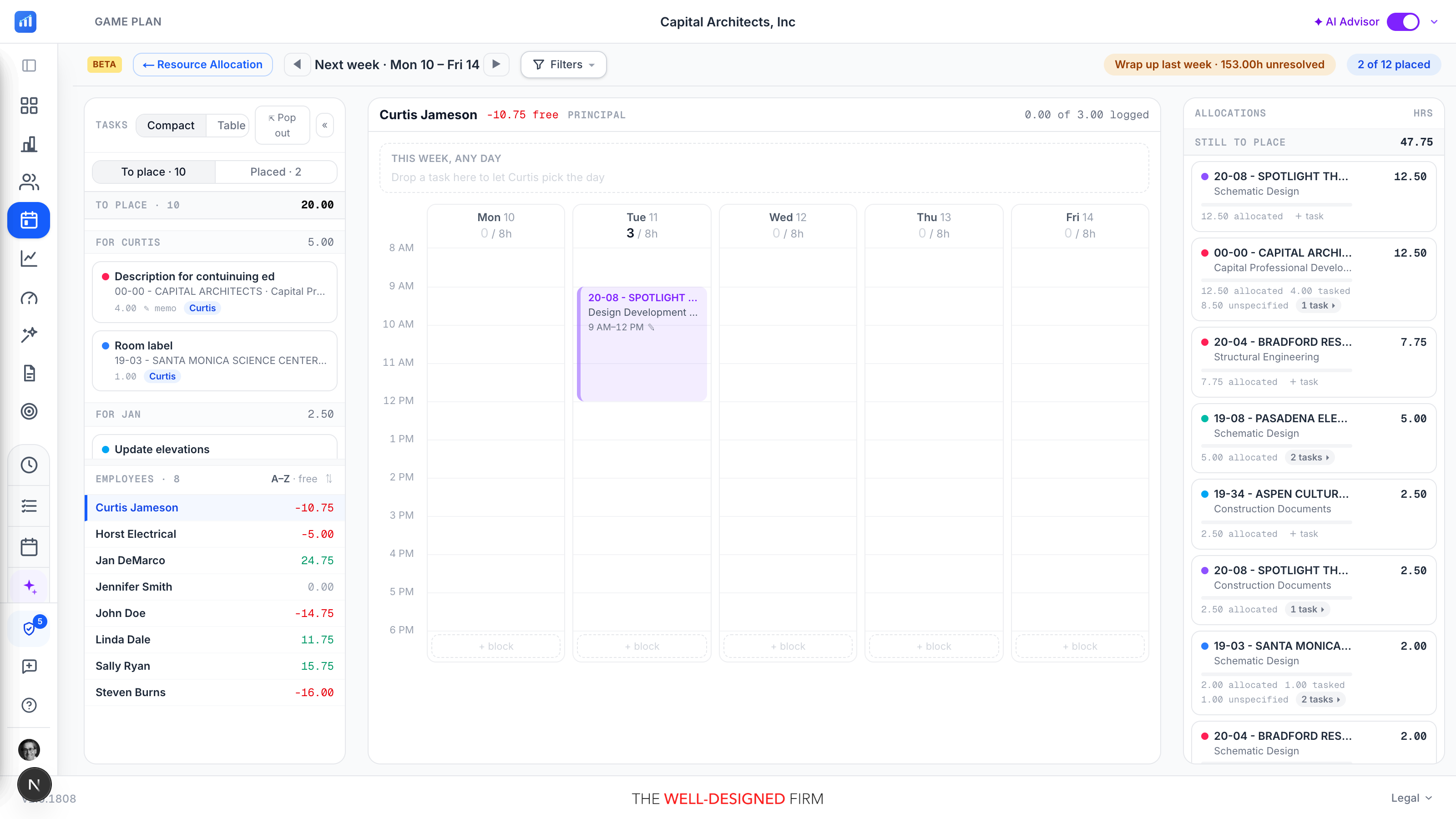
The screen has three parts. On the left, a dock with the Tasks list and the Employees roster. In the center, the selected person's Monday to Friday calendar with a real 8 AM to 6 PM time axis. On the right, the Allocations panel: the weekly hours from Resource Allocation that still need a day.
Planning here is for the same editors as the Resource Allocation board. Your team meets the plan where they already work: planned blocks appear on their Timecard and in My Schedule, ready to log with one tap.
The Tasks list#
Tasks are the work items you hand out, grouped per person as For X groups, each with its own add row. A task can be assigned to a person or to Anyone, and the list reads two ways: Compact or Table.
- Every task carries a Project · Phase, an Activity, the estimated Hours, and an Assignee.
- The Task description is client-facing: when the hours are logged and billed, it prints on the invoice. Write it the way the client should read it.
- The Memo is internal: notes for the person doing the work. It is never on the invoice.
- Import from CSV brings a whole week's task list in at once. Download the template first: it documents itself, with every column explained in the file.
The list sits above the calendar by default, across the full width of the centre: every table column fits without scrolling sideways, Compact cards flow several across, and the Employees roster has the left column to itself. ⤢ Dock moves it — above the week, below it, or back into the left column beside the calendar. Drag the bar between the list and the week to set how much of the screen each gets.
The Employees roster lists everyone you can plan for. Click a person to show their week in the calendar; each row shows how many free hours they still have this week, so you can see who has room before you assign.
Placing work on the calendar#
The calendar is one person's week, Monday to Friday on a real clock. Build the days by dragging:
- Drag a task from the list onto a day to schedule it there. Drop it on the This week, any day strip instead to hand out the work while letting the employee pick the day themselves.
- Drag on empty canvas to paint a timed block directly, then pick what it is for.
- A block is either anchored (it has clock times, like 9 to 11) or flex (it has a duration only, and floats until someone picks the hour). Drag a block's edge to resize it.
- Multi-select with cmd-click or shift-click, then act on the whole selection: Unassign, Remove, or Spread the blocks across the week.
- A Due flag is an amber deadline marker on a day: it carries no hours and can never be logged. Use it for the date something must ship, separate from the time to do it.
Each day's header shows planned hours against capacity, so an overstuffed Tuesday is visible before it happens. The week header shows the person's remaining free hours.
The calendar draws the firm's working day, set once by an admin in Settings → Time Entry (8 AM–6 PM until someone changes it). Work booked outside those hours is never hidden: the window stretches to cover it, an hour at a time.
Inside that window the hour scale sizes itself to the room it has, so growing the task dock compresses the day rather than pushing the afternoon under a scrollbar. Blocks shed a line at a time as it tightens, and the axis stops shrinking before they become unreadable. Full hours pins a fixed scale instead and lets the day scroll.
Allocations and budget checks#
The Allocations panel on the right is the bridge to Resource Allocation. Still to place is each phase's weekly allocated hours that have not yet been placed into days: the gap between the weekly plan and the daily one.
- Drag an allocation card onto a day to place its open hours there. Expand a card to break its hours into named tasks first.
- Placing hours never adds hours. Moving allocated work into days just schedules what was already planned; the weekly totals do not move.
The exception is deliberate: if a placement would grow a weekly allocation beyond what Resource Allocation planned, a running Budget checks list appears under the calendar. Each check gives a verdict on the correct basis for the contract: hours against budget for fixed fee work, value against estimate for hourly work. Then it offers two honest ways out:
- Borrow from next week: pull the extra hours forward from the following week's allocation, keeping the phase total unchanged.
- Keep as extra: accept the growth and let the weekly allocation rise, in full view of the budget verdict.
What your team sees#
Your plan lands where each person already logs time, and it stays a plan: nothing ever logs itself.
- On their Timecard calendar, anchored blocks appear as dashed ghosts in the project's color at their planned times. Flex blocks wait as draggable chips in the no-time lane: the person drags one onto the day to pick their own hour.
- Clicking a planned block opens the standard New-entry card, prefilled with your Description (the invoice text) and Memo (the internal note), with the phase locked. The person confirms the hours and saves: a normal time entry, made in seconds.
- Logging marks the block done with a green check, and a done block can never double-log: clicking it again will not create a second entry.
- My Schedule shows a Planned for you strip with the week's planned blocks and a one-tap Log on each.
The To log lens, and plan against actual#
As the week runs, Game Plan keeps score. The calendar header shows a plan-against-actual readout for the selected person: X of Y logged, planned hours that have become real time entries against the total planned.
- The All / To log lens filters the calendar: All shows the whole plan, done blocks included; To log hides everything already logged, leaving only the work still owed. Toward Friday, To log is the honest view.
- Done blocks carry their green check in both views, so a glance separates planned from proven.
Week wrap-up#
Weeks rarely go exactly to plan. When the last closed week left allocated but unlogged hours, an amber chip appears in the toolbar; open it for the Week wrap-up panel, which lists the drift person by person and phase by phase: allocated, logged, and the unworked remainder. Each row offers three verbs:
- Release: shrink last week's allocation down to what was actually logged. The phase budget is untouched; the plan simply stops claiming hours that never happened. This is the default for stale hours.
- Move: carry the unworked hours to a future week you pick, with each candidate week showing that person's free hours, or Spread them across the coming weeks' free capacity.
- Slide: push a phase's whole remaining schedule later by 1, 2, or 4 weeks, everyone on the phase included — and last week's unworked hours on that phase slide with it (one week later means they land in the current week). Because it moves many people at once, Slide sits behind a confirm that spells out exactly what moves.
In bulk: Apply every suggestion takes the panel's recommended verb on every row, and Release everything clears the whole list the conservative way.
Every wrap-up action is a plan edit, not a CORE write. The changes join the pending set on the Resource Allocation board and reach CORE on the next Review & publish there; choosing Discard on that board backs them out first.
Good to know#
- Does placing hours change my budget? No. Dragging allocations into days never adds hours. Only a placement that grows a weekly allocation changes anything, and the Budget checks list calls that out with a verdict before you decide.
- Will anything log time automatically? Never. Planned blocks are invitations: a time entry exists only after the person confirms it on their Timecard or in My Schedule.
- Which text does the client see? The Task description prints on the invoice; the Memo stays internal. Keep the split in mind as you write them.
- What if I do not know the day yet? Drop the task on the This week, any day strip, or leave the block flex. The person picks the day or the hour themselves.
- Do I have to plan every hour? No. Game Plan is an optional layer: allocations you never break into days still work exactly as they always have on the Resource Allocation board.
- Why the BETA badge? Game Plan is new and still growing. Everything documented here works today; the badge is your cue that the surface may gain features between visits.
Can't find it? Email support, or use Bugs & Requests in the app's gear menu.