
Help Center / My Schedule
My Schedule
Your own planned weeks: what you're booked on, how it's tracking, and a flag button when it looks wrong. · 4 min read
Your coming weeks#
Open My Work in the sidebar and pick the Schedule tab. It shows your own plan, one card per week for the coming eight weeks, built from your CORE allocations and your firm's COREboards staffing plan. Everyone gets this view, whatever their role: it answers "what am I slated to work on?" without opening the full Resource Allocation board.
Pinned to your dashboard, the same view shows this week only, with ◀ ▶ to step through the weeks ahead and Today to come back — a dashboard is for the week you're in, not a scroll through the next two months. Drag the card's bottom edge to resize it.
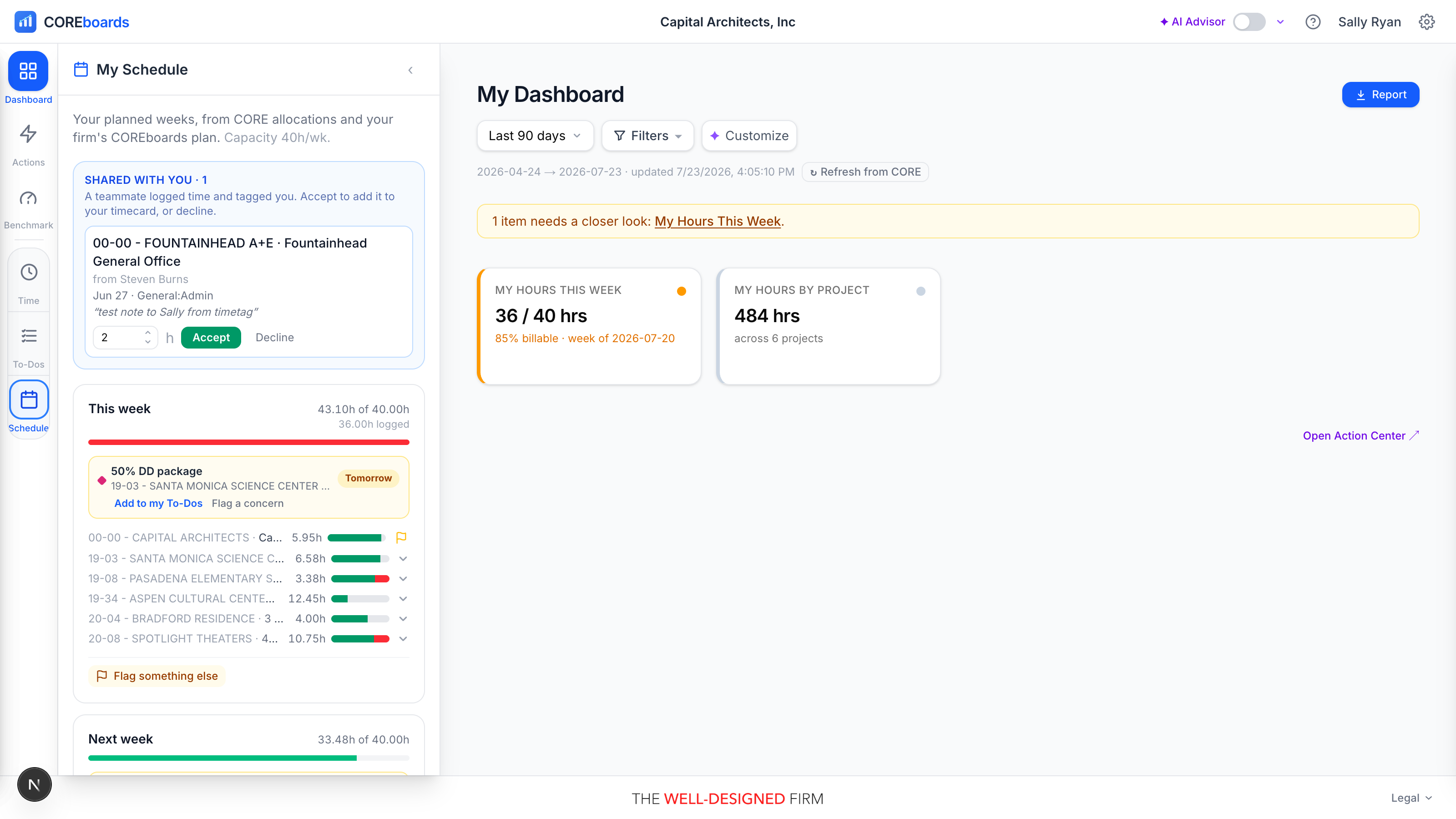
- Each card is headed This week, Next week, or the week's date, with your planned hours against your capacity (32h of 40h). Approved PTO shows right in the header, and time-off booked in CORE lands here automatically.
- A colored load bar under the header reads the week at a glance: green is comfortable, amber is near capacity, red is overbooked.
- Milestones lead the week. When a project you work on has a milestone that week — a client design review, an approval gate, a deliverable due — it shows at the top of the card with its colored diamond, and in the current week a countdown (Thu · in 3 days). Internal milestones (team meetings, pin-ups) sit in a quieter box. So the week reads as *what it's for*, then *what you're staffed on*.
- Milestones come with actions: Add to my To-Dos turns one into a personal CORE to-do due that day, and Flag a concern tells the phase's manager — the flag form opens with the milestone already referenced, so "I can't hit this review" arrives with context.
- Each row is a phase you're booked on, with its hours and a small planned vs. logged gauge. Rows in italics are tentative: penciled in, not yet confirmed.
- When one project books you on several phases in a week, they collapse into one line; click it to see the phases.
- Draft projects are left out. A manager can staff a project that CORE still marks *Draft* to pre-stage work the firm hasn't won yet — useful on the planning board, misleading in your own week, where it reads as hours you owe. If you're on any, a Show N draft projects link sits under the heading; revealed, each one carries a DRAFT badge and your weekly totals go up to match.
Log time from a row#
This week's rows are loggable in place: click a row's hours gauge to log time against that phase, pick the activity, and watch the gauge grow. No trip to the Time pane for the common case.
- You can tag teammates while logging: each tagged person gets a proposal for the same entry, which appears in their own My Schedule to accept or adjust. Proposals from teammates land at the top of yours.
- Future weeks become loggable too when your firm allows logging time on future weeks (a Settings choice made by a firm admin).
Flag an issue#
If a week looks wrong, say so where the plan lives. Every scheduled row has a flag button; each card also offers Flag something else for work you're allocated to that isn't showing that week.
- Pick what kind of problem it is: Can't deliver the schedule, Needs more hours, Conflicting priorities, or Question about the plan, and add a note.
- The flag becomes a real CORE to-do for the phase's manager and lands in the Resource Allocation board's Triage lens, so it can't get lost in a hallway conversation.
- Your flags at the top of the panel tracks each one as open or resolved. You're emailed when a flag is resolved, and Check now asks CORE for the latest.
For staffing editors#
My Schedule is deliberately personal and read-only: it shows the plan, it doesn't edit it. If your role can edit staffing (principals, studio leaders, project managers, firm admins), the panel adds an Open full Resource Allocation board link at the top, the way up to the whole team's plan.
Can't find it? Email support, or use Bugs & Requests in the app's gear menu.