
Help Center / AI Advisor
The AI Advisor
Plain-language commentary on your numbers, suggested tasks, and Ask your agent. · 17 min read
Where the Advisor appears#
The Advisor reads the same numbers you see and adds short, plain-language commentary: what stands out, why, and what to do about it. It shows up in a few well-chosen places rather than everywhere at once.
- Dashboard: a brief note on each KPI, plus a morning brief (the Executive Brief) that pulls the day's story together.
- Resource Allocation: a Monday read on the week's plan: who is overloaded, what is unstaffed, what to move first.
- Revenue Forecasting: a read on the revenue forecast and per-project projections.
- Scoreboard and Benchmark: monthly briefs on your targets and on how you compare to industry.
- Ask your agent: a side pane for your own questions, and for jobs like copying a project (below).
The Executive Brief's headline opens your Monday email, with your week below it. Turn the email on or off in Settings → Notifications.
The ✦ switch: your on/off control#
The ✦ AI Advisor switch in the header is yours alone; flipping it never affects a teammate. The switch turns everything on or off at once, and the small arrow beside it opens Where the Advisor appears: one checkbox per surface (Dashboard, Ask your agent, Resource Allocation, Revenue Forecasting, Scoreboard, Benchmark).
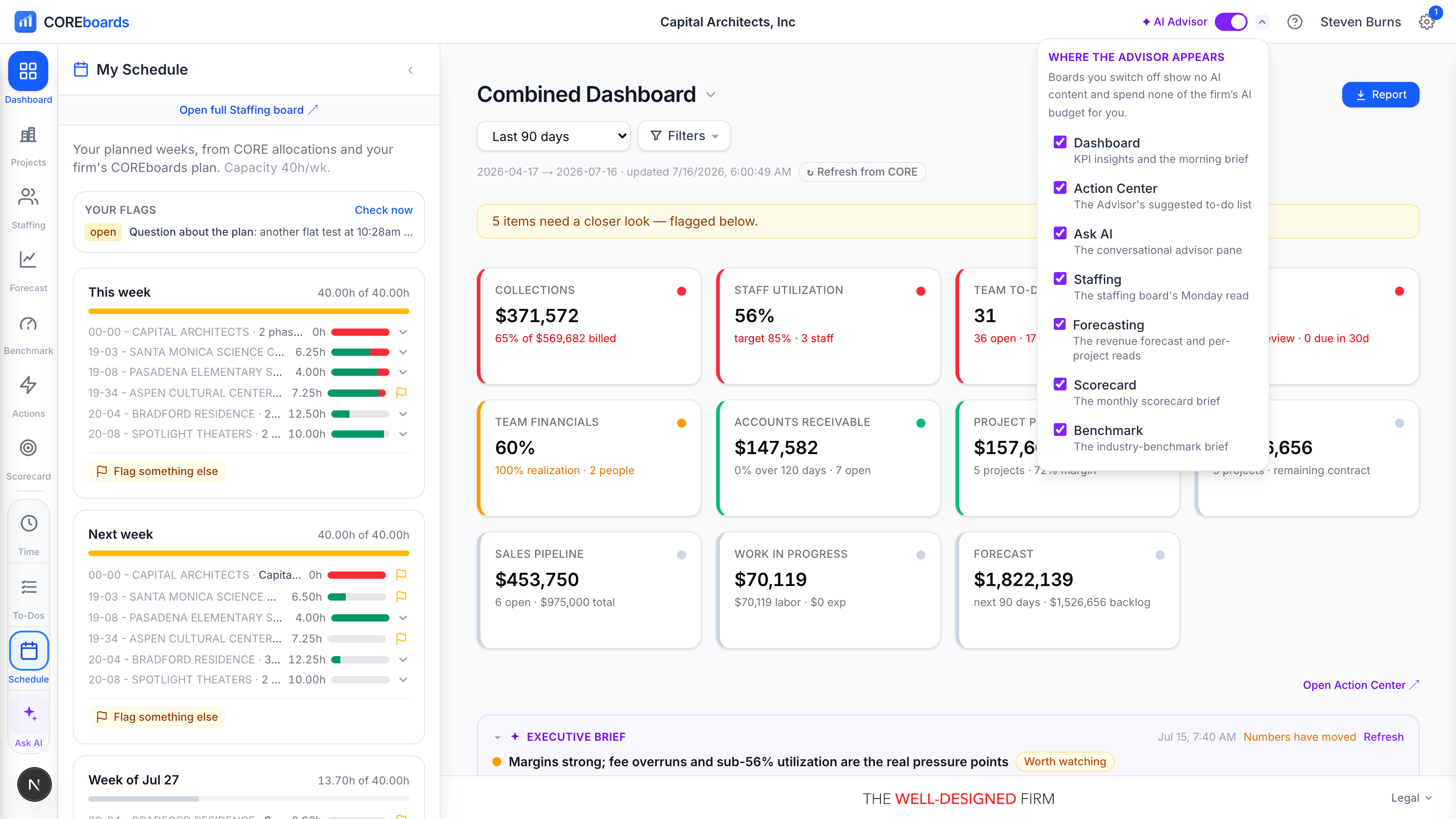
- Keep the Advisor on the boards you care about and off everywhere else; the mix is remembered across devices.
- A surface you switch off shows no AI content and does no AI work at all for you. Off means off.
If you don't see the switch at all, your firm admin has turned the Advisor off for your account (see the last topic).
Ask your agent#
Ask your agent is the second tab of the search panel: click the ✦ beside the search box at the top of the page, or press ⌘K and pick Ask your agent. It docks beside your work like My Work (your Time Card, to-dos and schedule). Ask about cash, AR, utilization, project margins, staffing: anything in your firm's numbers. Conversations are multi-turn, so you can follow up and dig in.
- Ask it to do something in the same box, such as "Copy Bradford Residence as a new project at 80% of the fee". It does the work right there, showing each step, then what it prepared. Nothing reaches CORE until you check it and create it. Today it can copy a project; ask for something it can't do yet and it says so.
- The same box is at the top of the AI Agents page. A question asked there opens this pane with the answer.
- Chat is the live conversation; History lists your past conversations so you can reopen any thread where you left it. + New starts fresh.
- History is per user: teammates never see your conversations.
- When an answer implies something to do, the Advisor attaches suggested actions, each tagged high, medium, or low impact. Click + Add to CORE to-do to turn one into a real to-do in BQE CORE.
- Not sure where to start? The empty pane offers a few starter questions; drag the pane's right edge to resize it, and the width is remembered.
Your CFO Agent (beta)#
The CFO Agent works for whoever runs the firm's money: anyone who can open the Billing or Money desk and see the firm's receivables. Every morning it reads the open invoices and how fast each client has paid over the last two years, and puts the clients about to be slow to pay at the top of your dashboard. If you can open the Billing desk, it also watches draft invoices and unbilled work.
- When a client counts as slow: an invoice a week from 60 days old, or past it. A client who always takes longer gets their own line, 15 days past their usual time, so a client who reliably pays at 70 days doesn't raise an alarm at 61. A client with too few paid invoices to know their habit gets the plain 60.
- One row per client, never one per invoice: two invoices from the same client are one decision.
- Old balances: an invoice over a year old is a balance to collect or write off, not a late payment to chase. It leaves the daily list and the dashboard and is listed once under Old balances to clean up on the agent's page, oldest first, each invoice opening in CORE.
- See reminder opens the client's invoices with a payment reminder already written: a short, polite email signed with your name, listing each open invoice with its date and amount. Edit it on the spot, then send it one of two ways. Email the client… sends it from COREboards when you press Send: you pick what to attach (a Statement of account listing every open invoice, and any of the client's open invoices as PDFs on your firm's invoice paper), it goes under your name, replies come to you, and a copy goes to you. Or Copy text / Open in email and send it yourself, then I sent it, log it. Either way a note goes on each invoice in CORE under your name, so the next person knows the client was reminded.
- Prepare payment reminders on the agent's page sets whether it writes reminders on its morning check (Draft it, the default) or waits for you to press Prepare reminder (Ask me first).
- Add a note writes your own note on the invoices in CORE. Later brings the client back tomorrow; Let it be sets it aside.
- Work not billed: one row per active project whose unbilled time from the last 120 days has sat past your firm's unbilled-work lines (21 and 30 days, $2,500 by default), with no draft open. Old time on finished projects is left out. Fixed-fee work earned by the percent complete and not billed counts too. Prepare draft invoice opens the same small Bill it window as Billing.
- Prepare draft invoices for unbilled work starts on Ask me first. Switch it to Draft it and the agent makes up to three draft invoices a morning, at the Billing sheet's own amounts; the row then reads Review the draft. A draft attaches its time, so CORE shows that time as billed until you finalize or delete the draft.
- Draft invoices not going out: one row listing every draft that is stuck: older than two weeks, approved and not finalized after three days, or with a manager for over a week.
- The agent never sends anything to a client. That isn't a setting. An email goes to a client only when a person presses Send; a draft invoice is finalized and sent by a person, from Billing and CORE.
- Its page is AI Agents → CFO Agent: the clients it found, what it watches, and what it did on its last check. Check now runs a fresh check.
- In the Monday email: a short Your CFO Agent section on top of your week: the money over 60 days and how many clients owe it, the clients it is watching, draft invoices not going out, and projects with work unbilled. It is the same one Monday email, not a second one; turn it off in Settings like the rest of the email.
Your Principal Agent (beta)#
The Principal Agent works for principals and firm admins who see the whole firm and can see cost and margin. Every morning it checks every active project's cost against its fee and puts the ones that will lose money at the top of your dashboard.
- On cost, not percent complete. Cost is the time logged at each person's cost rate. Past the fee: cost so far is above the fee. Heading past: cost so far plus the cost still booked in Resource Allocation is above the fee. Thin margin: what is left at the end is under your firm's margin watch line (10% by default); that one is a quieter Watch row.
- See the numbers opens the project beside your list: the fee, cost so far, what is still planned and where it lands, phase by phase. Adjust opens the steering window on the phase furthest below its fee.
- A note for the project manager is prepared from those numbers. Edit it and press Send: it becomes a to-do in CORE for the project's manager, on the project. The agent never sends it on its own.
- Numbers I don't trust: a project whose percent complete says more was earned than the fee, whose cost is many times its fee, or that has spent much of a large fee with nothing planned, is listed on the agent's page instead of your dashboard, with where to fix it.
- It never changes a fee, a plan or a percent complete, and never contacts a client. Its rows replace the fee-overrun rows for the same project, so one problem is one row.
- Studios below target (Mondays): a studio is the people who share a manager in CORE. When a studio's billable hours over the last four full weeks are 10 points or more under its target, and were the week before too, it is a Watch row, naming anyone who logged no time last week. The target is each person's CORE target, or your firm's default (65%). It never makes a row about one person.
- See the studio opens the studio beside your list: its rate, its target, the four weeks before, and each person's rate.
- Pipeline fit (Mondays): for the next six months it weighs each pursuit by its chance of winning (one with no chance set counts as certain) on top of what the staffing plan already books, against capacity after PTO and holidays. More than you can staff: any month over, naming studios already over on booked work. Not enough work: booked and likely work fall under 60% of capacity within three months and likely work fills less than half the free hours. See the fit shows it month by month. With nothing booked in the next three months it says it can't tell, rather than calling the firm idle.
- In the Monday email: a short Your Principal Agent box on top of your week: the projects losing money on cost and the shortfall at the end, studios below target, the pipeline against your people in one line, and how many numbers it doesn't trust. It is the same one Monday email, not a second one.
- Its page is AI Agents → Principal Agent.
Your Studio Leader Agent (beta)#
The Studio Leader Agent works for studio leaders. Your studio is the people whose Manager is you in BQE CORE. Every morning it reads their next four weeks in Resource Allocation and puts anyone booked past their capacity at the top of your dashboard.
- One row per person, across all their projects, replacing the plain overbooked row for them. A week counts as overbooked by the same rule as everywhere else: more than half an hour past capacity.
- See the moves opens the person's four weeks beside your list, project by project, with the moves the agent prepared: hours handed to someone in your studio with the same CORE role and room that week, or moved to a week of their own with room.
- Approve saves the moves to the plan unpublished, worked out again on the plan as it is at that moment; nothing goes to CORE until someone publishes from Resource Allocation. Each move is checked against your own edit rights.
- Prepare moves for an overbooked person on the agent's page is Draft it (the moves are ready when you open it) or Ask me first (press Prepare moves).
- No one reports to you in CORE? The agent's page says so. Set Manager on your people's Employee records in CORE and it starts the next morning.
- Who has room, on Mondays: the people in your studio under half booked for the next two weeks, matched to phases due in the next three weeks that are short of hours (their CORE budget, less the time logged, less the hours still planned). A phase counts as yours when someone in your studio is planned on it, or when you or one of your people manages the project. It only appears when your studio has hours planned those weeks and at least one match exists.
- See where opens the matches beside your list. Each is a suggestion: Add to plan opens that phase's plan right there with the person added, and what you save waits unpublished, like any change to the plan.
- Last week's time, every morning: anyone in your studio with under half their standard week entered for last week, or with entries not submitted. People who logged no time at all in the four weeks before are left out, since they don't keep time in CORE. The plain unsubmitted-time row stays as it was.
- Send the nudge opens a short note the agent wrote in your name, which you can edit. It becomes a to-do in CORE for that person only when you press Send; the agent never sends it on its own.
- In the Monday email: a short Your Studio Leader Agent box on top of your week: who in your studio is overbooked and whether moves are ready, who has room the next two weeks, and whose time for last week isn't in. It is the same one Monday email, not a second one.
- Its page is AI Agents → Studio Leader Agent.
Your Director Agent (beta)#
The Director Agent works for directors. Every morning it reads the whole firm's schedule for the next six weeks, project manager by project manager, and puts the problems that are the firm's at the top of your dashboard.
- Deadline clashes across project managers: one person needed by deadlines on projects run by different project managers in the same week, and booked past their capacity that week. A clash inside one project manager's own projects is theirs to settle, and their PM Agent tells them.
- Phases past their end date with at least a day's work still planned, and deadlines with no one planned on the project before them.
- See the week on a clash shows both projects, their deadlines and project managers, and the moves the agent prepared: hours handed to someone with the same CORE role and room that week, or moved to a week with room. Approve saves them to the plan unpublished; nothing goes to CORE until someone publishes. Rebalance this week opens the week in place.
- See the phase and Plan it open the phase's plan right there, and Change the end date moves a phase's end date in CORE once you confirm.
- Note to the project manager: a short note the agent wrote in your name, which you can edit. It becomes a to-do in CORE for each project manager involved only when you press Send.
- Prepare moves for a deadline clash on the agent's page is Draft it (the moves are ready when you open it) or Ask me first (press Prepare moves).
- The firm's fees, as one row: every phase past its fee (billable work logged and still planned, against the phase's fee) in a single row, with how many are new this week. On a director's dashboard it stands in for the row per project. See the list groups them by project manager; Re-plan opens a phase's plan in place, and Ask the PM prepares a note that becomes a CORE to-do on that project when you press Send.
- PM's agent has it: when a project manager's own PM Agent raised the same problem, the row says so. If they set it aside there, it leaves your dashboard too.
- In the Monday email: a short Your Director Agent box on top of your week: the deadline clashes across project managers, phases past their end date and deadlines with no one planned, and how many phases are past their fee. It is the same one Monday email, not a second one.
- Its page is AI Agents → Director Agent.
Your Architect / Engineer Agent (beta)#
The Architect / Engineer Agent looks after your own week. Every morning it reads the hours planned for you in Resource Allocation this week and next, and when they don't fit your capacity it puts one row at the top of your dashboard.
- See my week opens your two weeks by phase, each with its project manager, against your capacity.
- Tell my PM raises "can't deliver this schedule" on the phases you tick (the biggest ones are ticked for you), with a note you can edit: each project manager gets a to-do in CORE and an email. Phases you manage yourself aren't listed. Nothing goes until you press Send.
- It never changes the plan. From Saturday it looks at next week and the one after.
- Your deadlines: the phases you're planned on that end in the next two weeks, soonest first, each with your own hours planned before it and its project manager. One row in your time and to-dos; See them opens the list. A phase with under two hours of yours before it isn't counted.
- Its page is AI Agents → Architect / Engineer Agent.
Advisor tasks vs. CORE to-dos#
The Advisor's tasks (in each KPI's drill-down panel and under Ask your agent answers) are suggestions that live in COREboards: reviewable, dismissible, and refreshed as your numbers move. Nothing reaches CORE until you decide it should.
- Push the good ones: adding a task to CORE creates a real CORE to-do, visible to whoever works your firm's to-do list in either app.
- Suggestions that go stale (the number recovered, or the moment passed) are cleared so the list stays current instead of nagging forever.
Privacy and cost#
- The Advisor works from compact numeric summaries of your dashboards, not raw exports of your books: enough context to comment usefully, nothing more.
- Your firm's data is never used to train AI models.
- Analyses are cached and reused while the underlying numbers haven't changed, so the Advisor never re-analyzes the same data twice. It's included in your subscription: there is no extra AI charge and no meter to watch.
- Every AI feature is optional. A surface that's off renders no AI content; the rest of COREboards works exactly the same without it.
For firm admins: per-person Advisor access#
In Admin, every user row has an AI Advisor switch, on by default. Turn it off to reserve AI use for certain people: that employee's ✦ switch disappears, every AI surface goes quiet for them, and their own module picks are overridden until you switch them back on. The change reaches their open session on its own, no refresh needed.
Can't find it? Email support, or use Bugs & Requests in the app's gear menu.