
Help Center / Settings
Settings & preferences
Text size, theme, the sidebar, email preferences, and the switches that shape your firm's boards. · 5 min read
Text size and theme#
Click your name at the bottom of the sidebar to open Settings, then pick Display from the jump list down the left.
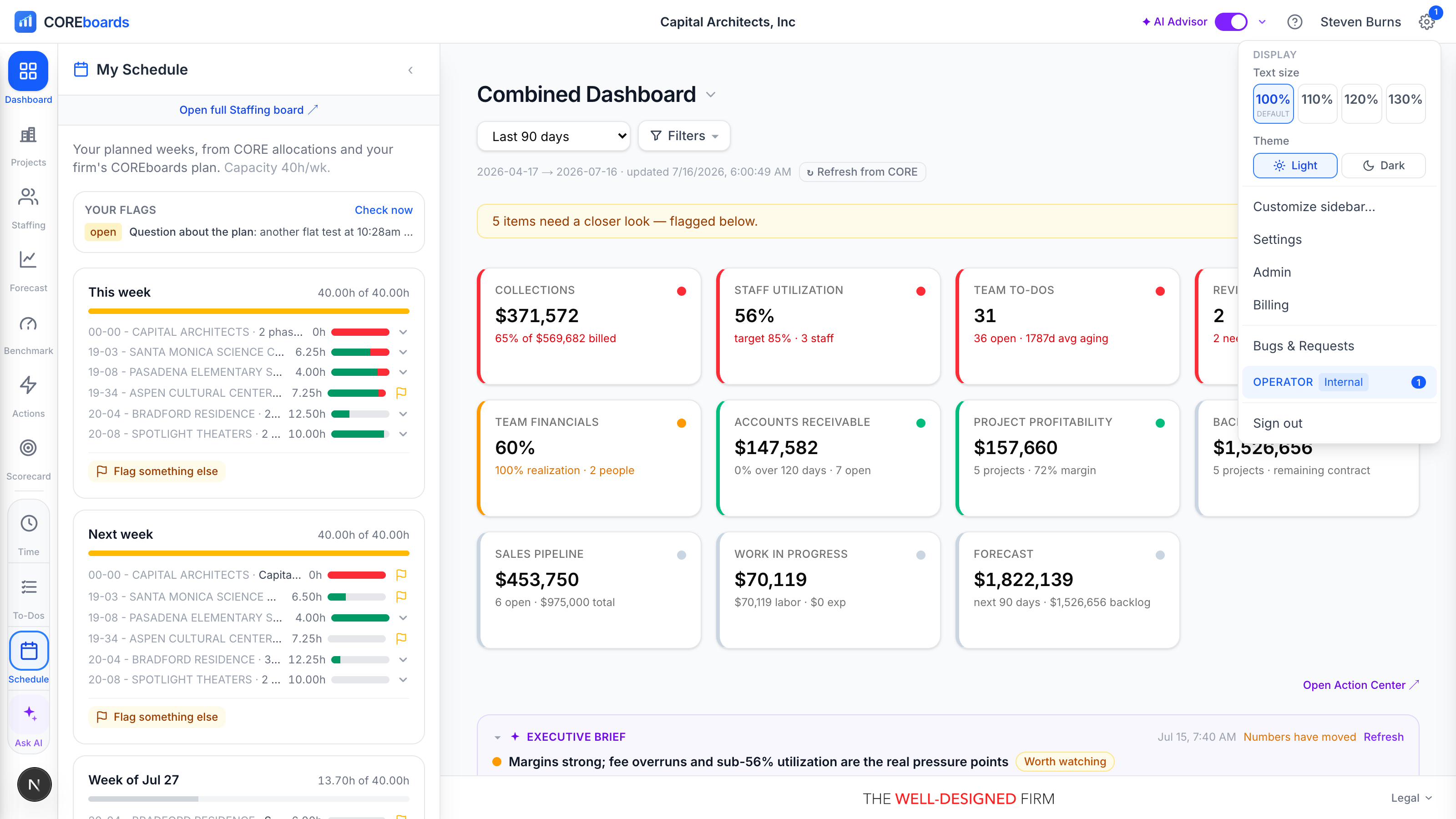
- Text size: pick 100%, 110%, 120%, or 130%. Each size is its own button, so one click lands exactly on it, and Reset jumps straight back to 100%. The whole app rescales, not just one page.
- Theme: light or dark, side by side. The menu stays open, so you can try both and compare before closing it.
Both choices are remembered: the app opens the way you left it.
Personal preferences#
Everything below lives in the same place: click your name at the bottom of the sidebar. (The /settings page shows the identical sections if you prefer a full page, or land there from a link.)
- Profile photo: your picture on the sidebar and anywhere you appear in COREboards. Upload a JPEG, PNG or WebP and it's cropped square and resized for you; Remove puts your initials back. BQE CORE keeps its own employee picture that it doesn't share with other applications, so the one you set here is the one COREboards uses.
- Mobile number: added to staffing-flag emails so your manager (or a teammate) can reach you when you're away from the app.
- Remember my date range: next time you sign in, reopen the dashboard on the date range you last used. Off by default, so sign-ins start on the last 90 days for a faster load.
Email notifications#
COREboards emails firm leaders a few well-timed reads. These switches control whether they come to you, and each appears only for the roles that receive that email.
- Monday email: Monday mornings, your own week by email: what needs you, including what your AI agent found, what to watch and what is fine, each row linking to its fix, opened by the Executive Brief's headline, with the 12-month outlook and the milestones landing in the next two weeks. Anything you already handled, accepted or snoozed is left out. On by default for leaders; anyone can turn it on.
- Monthly scoreboard reminder: on the 1st, when last month is ready to close on the Scoreboard. Only sent while the month is still open.
Every COREboards email also carries a one-click unsubscribe link, no sign-in required, so stopping one is never a chore.
Firm-wide policies#
These switches shape the whole firm, so anyone can view them but only a firm admin can change them.
- Allow logging time on future weeks: off by default, and the current week is always loggable either way. BQE CORE still enforces its own timesheet rules at submit.
- Staffing capacity: Effective Capacity on the Resource Allocation board always counts your active employees. Two toggles decide whether CORE vendors also count toward the firm's available hours: contract employees are on by default (they work like staff), outside consultants are off by default. A type you turn off stays off the capacity bars, though its booked work still shows as demand.
Names, thresholds, and CORE links#
Also in Settings, editable by firm admins:
- Dashboard names: rename any board to your firm's language: “Principal Dashboard” can become “Partner Dashboard,” and so on. The Architect / Engineer board can use the {name} token to show each viewer's own name. Names apply firm-wide, everywhere they appear.
- People's names: BQE CORE shows everyone by their “Display As” field, which plenty of firms set to initials (“NQJ”). Choose instead to build every name from the CORE first and last name fields: Nicole Johnson, N. Johnson, or Nicole J. The choice applies everywhere a person appears — the staffing board, utilization, to-do assignees, pickers, and firm email — and anyone whose CORE record has no first or last name keeps their Display As.
- Attention thresholds: the numbers that decide when a dashboard tile or staffing cell turns amber or red: AR aging, collections, utilization gaps, margin, staffing workload, project fee burn, and how sensitive Monday Triage is. Tune them to your firm's tolerance, or reset to the defaults any time.
- BQE CORE project links: clicking a project in a dashboard opens it directly in CORE, using your firm's CORE web address. If BQE ever moves your firm to a different server, paste any CORE project URL here and the links repair themselves.
- Connected apps sits at the bottom of Settings: see the Connected apps chapter.
For profile mapping, seats, roster, and billing, see the For firm admins chapter.
Can't find it? Email support, or use Bugs & Requests in the app's gear menu.