
Help Center / Users & Access
Users & Access
Who can open what, which numbers they see, and how to check it before anyone complains. · Firm admins · 14 min read
The two decisions#
Access in COREboards is two separate questions, and it helps to keep them apart:
- Where can this person go? Which destinations appear in their sidebar: Resource Allocation, Revenue Forecasting, Scoreboard, Benchmark, the Project Center, the Report Center.
- Which numbers can they see once they are there? Cost rates, cost totals, profit, margin, billing and A/R, firm financials.
They are independent on purpose. A project manager can run the Project Center without ever learning what a colleague costs per hour, which is the arrangement most firms actually want and could not previously express.
The dashboard itself is always on. It is the home anchor, it cannot be switched off, and someone with no dashboard has no reason to sign in at all.
Where each one lives
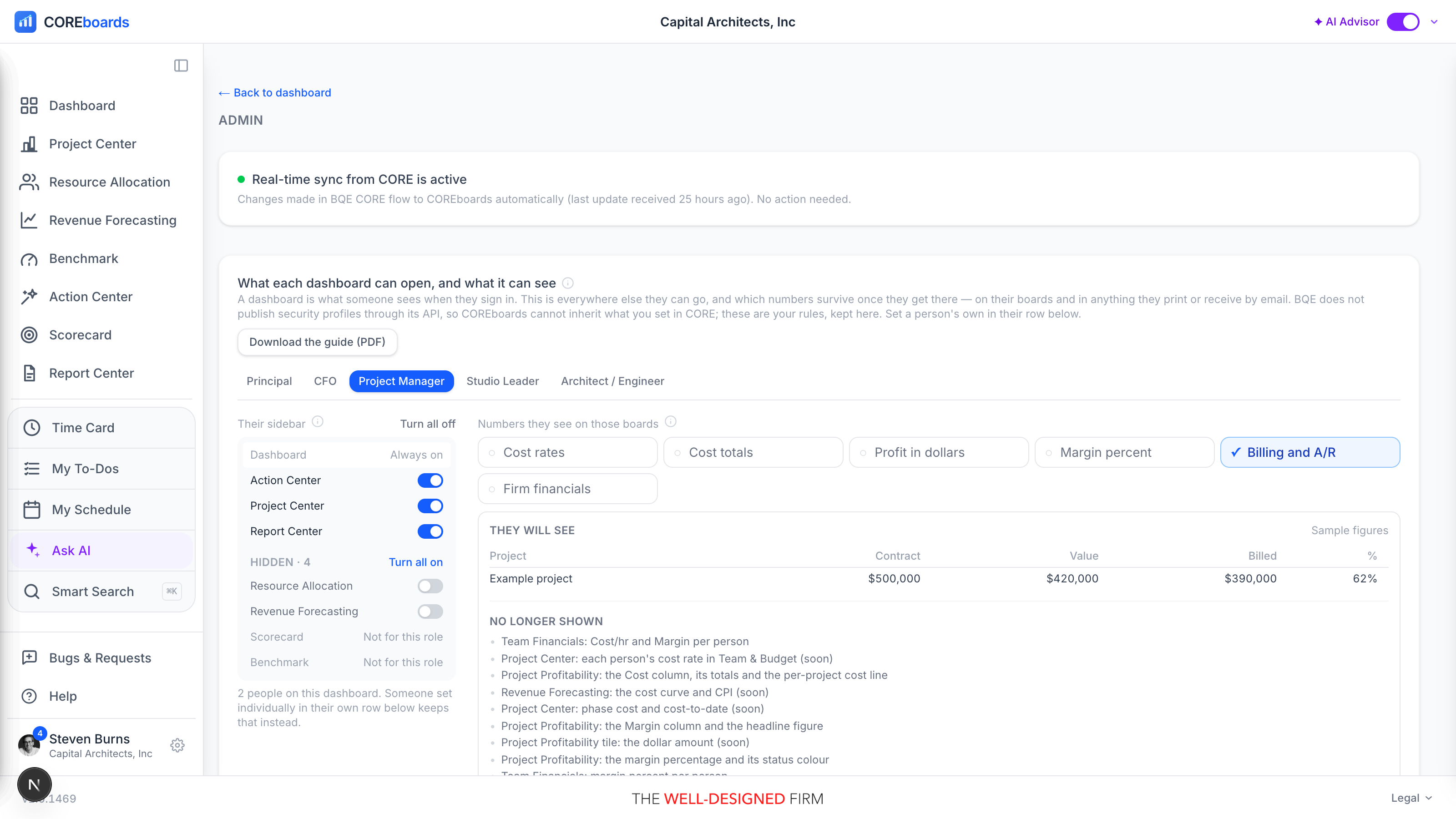
Open Settings, then Users & Access. The panel at the top sets a whole dashboard at once, one role at a time. Further down, each person's row opens to the same two controls for that person alone.
Which setting wins#
Three layers, and the most specific one wins:
- The person. Anything you set in someone's own row beats everything else. Their row says Just this person.
- The dashboard. Your firm's setting for that role, made in the panel at the top of the screen. This is what most people follow, and their row says Follow their role.
- The COREboards default. What the product ships with, used until your firm saves its own. The panel labels this COREboards default so you can tell at a glance whether anyone has set it.
A person's own setting is pinned
This is the part worth knowing. Dashboards are re-derived whenever someone's security profile changes in BQE CORE, which is right for a promotion. A per-person access grant is not. If you give one project manager Revenue Forecasting, you meant it, and a change to their CORE profile will not quietly undo it.
The cost is that a pinned person stops tracking your dashboard settings. If you later change what project managers can open, that person keeps what you gave them. Their row says so, and switching them back to Follow their role re-joins them to the group.
Firm admins are the exception
Anyone marked Firm admin holds every module and every figure, whatever the settings say. The screen that grants access cannot be one you can lock yourself out of. It also means your own copy of anything is never a fair test of what you have configured, which is what the checking tools further down are for.
Setting a whole dashboard#
The panel at the top shows one dashboard at a time, chosen by the tabs across it. What you see on the left is that person's sidebar: not a picture of it, the actual control. Each row has a switch, and flipping it is the setting.
- Dashboard sits at the top, locked, marked Always on.
- Everything you have granted follows, in sidebar order.
- Everything you have not collects under Hidden, with a count and a Turn all on beside it.
- Turn all off clears the dashboard back to nothing but itself. It asks first, because it takes boards away from people who are using them right now.
Changes are live
A change applies the next time that person loads a page. Nobody has to sign out and back in, and nobody is thrown out of a screen mid-task.
Where the lower dashboards start
Project Manager, Studio Leader and Architect / Engineer start with a dashboard and nothing else. This is deliberate. A firm that withholds something useful hears about it in a day and fixes it in one click; a firm that discloses something it believed was private does not get that chance. Principal and CFO are unchanged.
If your firm has already saved its own settings, they stand. A stored choice always beats a built-in default.
Rows that say "Not for this role"#
Some rows show Not for this role and carry no switch at all. This is not a bug and it is not something you can override from this screen.
Those destinations have their own rules built into the product, on top of anything your firm sets:
- Scoreboard is for principals, the finance lead and firm admins, and also needs a Scoreboard seat.
- Benchmark is for principals, the finance lead and firm admins, because its gauges are built from your firm's own financial figures.
- Resource Allocation, Revenue Forecasting and the Project Center need a role that plans work to EDIT: principal, studio leader, project manager or firm admin.
Granting one of these to a role the product refuses would change a stored list and change nothing anyone could see. Rather than give you a switch that does nothing when you flip it, the row states the reason. If you need someone to have one of these, change their dashboard instead.
View is the exception
On a single person's row, those three planning destinations carry an Off · View · Edit choice instead of a plain switch. View opens the board for anyone, whatever their dashboard: they see everything the board shows, and every save, publish and status change is off, both on screen and at the server. Edit still needs a planning role, so it stays greyed where the role refuses. Use View for the person who should see the allocation plan or a project's budget without being able to change what CORE holds.
The six kinds of number#
The right-hand side of the panel decides which figures survive on that dashboard's boards, and in anything printed or emailed from them. There are six, and they are independent:
- Cost rates. What each named person costs per hour.
- Cost totals. Labor cost on a project, a phase or a report.
- Profit in dollars. Profit and margin as a dollar figure.
- Margin percent. Margin and realization as a percentage.
- Billing and A/R. Invoices, A/R, collections and unbilled work.
- Firm financials. Firm-wide payroll and expenses, and the figures behind every Benchmark gauge.
What a sample row shows you
As you switch them, the sample project row beside the chips loses its columns, and No longer shown lists the named places each one disappears from. Both update as you click, so you can see the consequence before you leave the screen.
Why hiding cost may not hide cost#
If you turn off the cost figures but leave margin on, the screen will warn you, and it is worth understanding why.
A project manager can see the fee. Fee minus profit is the cost. Fee times one minus margin is also the cost. Either one is a single subtraction, and adding one person to a phase turns that total into that person's rate.
So hiding cost while showing margin is not a weaker disclosure. It is the same disclosure in a different unit. To genuinely withhold what people cost, turn off cost rates, cost totals, profit in dollars and margin percent together.
COREboards tells you this at the moment you make the choice rather than letting you ship a setting that only looks like protection.
Making one person an exception#
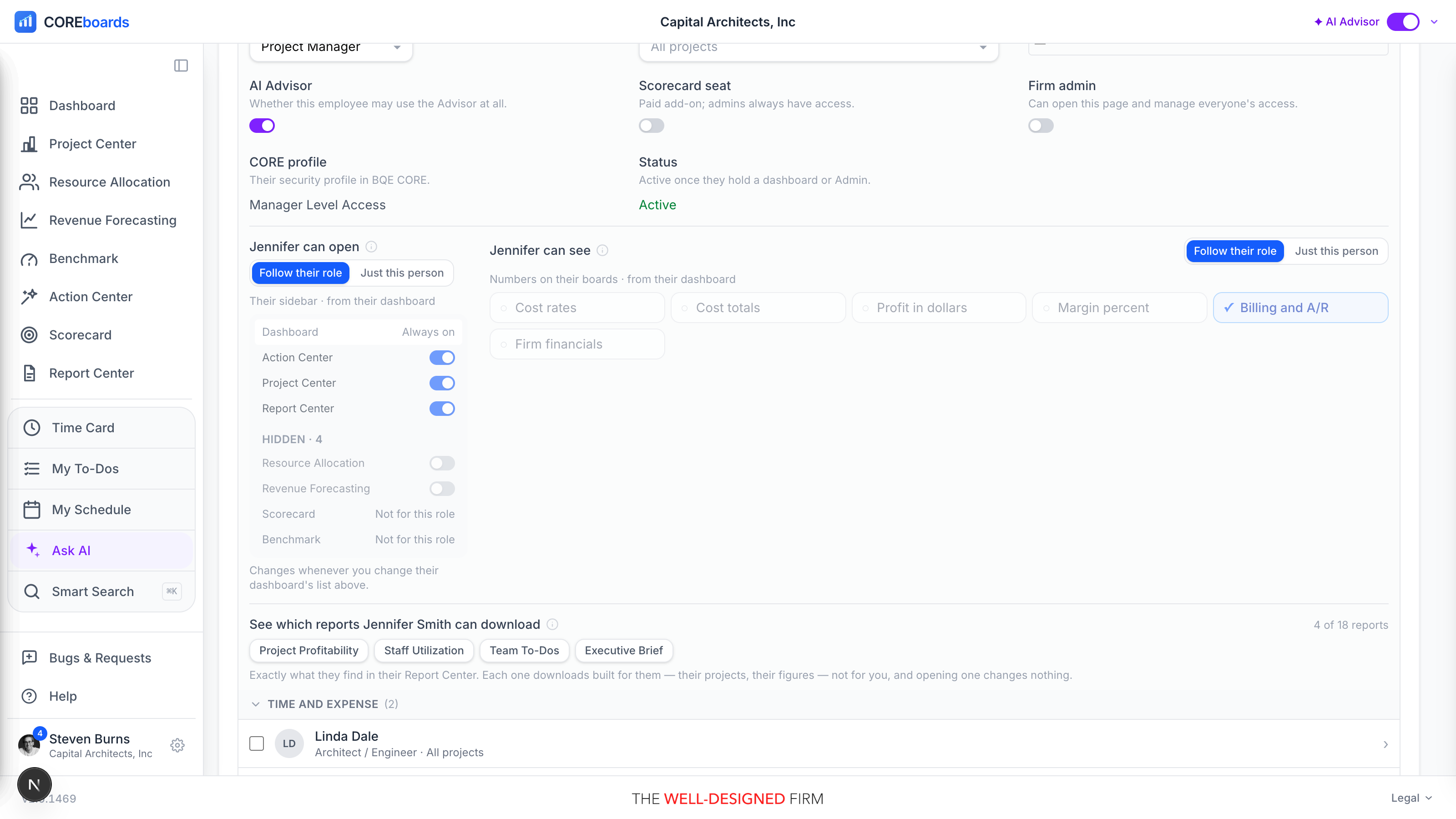
Find them in the list further down and click their row. It opens to the same two controls, for them alone, plus their dashboard assignment, their project limits, and whether they are a firm admin.
Each half starts on Follow their role, and the sidebar shows what they get from their dashboard, greyed and read-only. Click Just this person and it becomes editable, starting from exactly what they had, so an exception is a change from where they were rather than a blank slate.
Use this sparingly. A firm where everybody is an exception has no policy, only a list. When several people need the same thing, change the dashboard instead.
Limiting someone to certain projects
Projects narrows a person's boards to named projects, for firms that keep studios or offices separate. It is not part of the access settings above: it changes which work they see, not which screens they can open or which figures survive.
Checking it before anyone complains#
You hold everything, so your own screens can never show you the result of what you just configured. That is what the bottom of each person's row is for.
See which reports this person can download lists the reports that are actually in their Report Center, with a count against the full catalog. It is the same list they see when they open it, computed the same way, so a report missing here is missing for them.
Click any one and it downloads built for them: their dashboard's KPIs, only the projects they are responsible for, and only the figures their settings allow. The file is named after them so you can tell whose copy you are reading. Opening one changes nothing and is not recorded against them.
What to look for
- Are the right reports listed, and is anything there you did not expect?
- Open the Executive Brief. It is the one that goes out by email, so it is the one worth reading in full.
- Check that the columns you withheld are actually gone, not just blank.
Read the sidebar in their row while you are there. It is the rail they will see when they next sign in.
Opening the app as they see it#
The reports above are one document each. Open their view, in the same row, borrows the whole product: sign-in to sidebar, exactly as that person gets it.
It is the honest article, not a preview. COREboards serves the request as them, so their dashboard, the projects they are responsible for and the figures their settings allow are all resolved by the same code their own login runs. If it is on your screen, it is on theirs.
Two things it will not let you do
- Change anything. The whole app is read-only while you are in someone's view: no timecard, no to-do, no publishing. Nothing you do can be recorded later as something they did.
- Open this screen. Users & Access, and everything else reserved for admins, closes while you are viewing a non-admin, because that is what they see.
Getting back
An amber edge frames the window the entire time, and a pill in the bottom-right names the person. Exit on that pill returns you to your own account from wherever you are. It also ends by itself after two hours, and signing out ends it.
What it is for
- Training. Walk someone through their own board rather than yours, so what you demonstrate is what they will find afterwards.
- Screen sharing safely. You are showing their figures, so nothing you are not sharing deliberately can be on screen.
- Answering "I can't see X". Look at what they are looking at before changing a setting.
Placeholder records are not offered: they cannot sign in, so there is no view to borrow.
What reports do with these settings#
Access settings reach printed and emailed reports, not just screens. Three things happen:
- Reports made entirely of withheld figures disappear. Turn off Billing and A/R and the A/R, Collections and WIP reports leave that person's Report Center. They are not listed, and a saved link to one refuses.
- Reports that merely contain a withheld figure lose that column. Project Profitability keeps its projects and earned value and drops the cost and margin columns, because the rest of the report is still useful to them.
- The written summary is withheld whole. The executive brief on the cover is a paragraph of English that names the very figures in question, and there is no way to redact a sentence reliably. A reader missing any of those figures gets the report without the commentary rather than a version that hands the numbers back in words.
Being straight with you about coverage
This is complete for the Executive Brief, Profitability by Project and Team Financials. The other KPI reports honour which reports a person can reach, but a few of them still print every figure on the pages they do render. We are working through them, and this note will say so when it is finished.
Contract staff and consultants#
Your staff are mirrored from CORE automatically: hire someone, they appear here. The panel at the bottom of this screen is for the other group, the contract employees and outside consultants BQE CORE keeps in your vendor list, and it works the opposite way round.
It has to, because that list is not a roster. Alongside the contractors who genuinely work for you sit subconsultant practices, one-off payees, and placeholder rows like "CHOOSE STRUCTURAL ENGINEER". Nothing in the record tells them apart, and one firm's list runs to nearly two hundred entries for sixteen employees. So COREboards asks you rather than guessing.
- Nobody has access until you grant it. Until then they cost nothing and cannot sign in, however many are in your vendor list.
- Granting access adds one person to your subscription. The panel says what that costs before you click, and the person comes off again the moment you remove their access.
- They get dashboards exactly like an employee. Pick which boards they open, and everything on this page (money classes, project scope, modules) then applies to them the same way.
Removing access keeps their history, so someone who worked on a project last year still shows in your operator records with the date they last signed in, and giving access back later does not create a second person.
Why this is not inherited from BQE CORE#
A fair question: you already set permissions in CORE, so why set them again here?
Because CORE does not publish them. Its API exposes no security profiles, no module permissions and no project Manage Access. All it hands over is the name of a person's profile, which is why the mapping screen further down this page can read the name and nothing else. This is a limit of the API, not a choice COREboards made, and no product built on that API can do better today.
So the rules live here and are owned by your firm. The practical consequence is worth stating plainly: a person restricted from cost in CORE can still hold a COREboards dashboard that carries financial data. Setting one does not set the other. This screen is where you close that gap.
We have asked BQE for access to this data. If it becomes available, COREboards will read it and tell you where the two disagree.
Common questions#
Someone says a board vanished
They are seeing the result of a setting, and the first thing to check is whether it is theirs or their dashboard's. Open their row: if it says Follow their role, change the dashboard at the top; if it says Just this person, the answer is in their row.
I changed a setting and my own screen looks the same
It will. Firm admins hold everything, so no access setting applies to you. Use the report links in the person's row to see the result.
Do people have to sign out for a change to apply?
No. The next page they load is already correct.
Can someone reach a screen by typing its address?
No. Every page and every report checks on the server, on each request, using the settings in force at that moment. Hiding a sidebar entry is a convenience, not the lock.
What happens when someone leaves?
COREboards mirrors the active employee list in CORE. Someone made inactive there stops being able to sign in here. Their settings are kept, so a returning employee comes back to what they had.
Someone holds two dashboards
They get the more permissive result of the two, which is how every other role capability in COREboards resolves. If that is not what you want, set that person individually.
Can't find it? Email support, or use Bugs & Requests in the app's gear menu.