
Help Center / Admins
For firm admins
Mapping profiles to boards, per-person seats, roster sync, billing, and getting teammates in. · Firm admins · 6 min read
Map profiles to dashboards#
Open Admin from the settings that open when you click your name at the bottom of the sidebar. The top table maps each CORE security profile to one or more COREboards dashboards: everyone on that profile inherits them, including new hires, who get the right board the first time they sign in with nothing extra to set up.
- Profiles come straight from your CORE employees, so the sorting you already did in CORE does the work here.
- A profile can carry several dashboards; a person with more than one can switch between every board they've been given.
Per-person access and seats#
Below the mapping, the Users table lists your team grouped by CORE security profile, searchable by name. Every change saves as you make it.
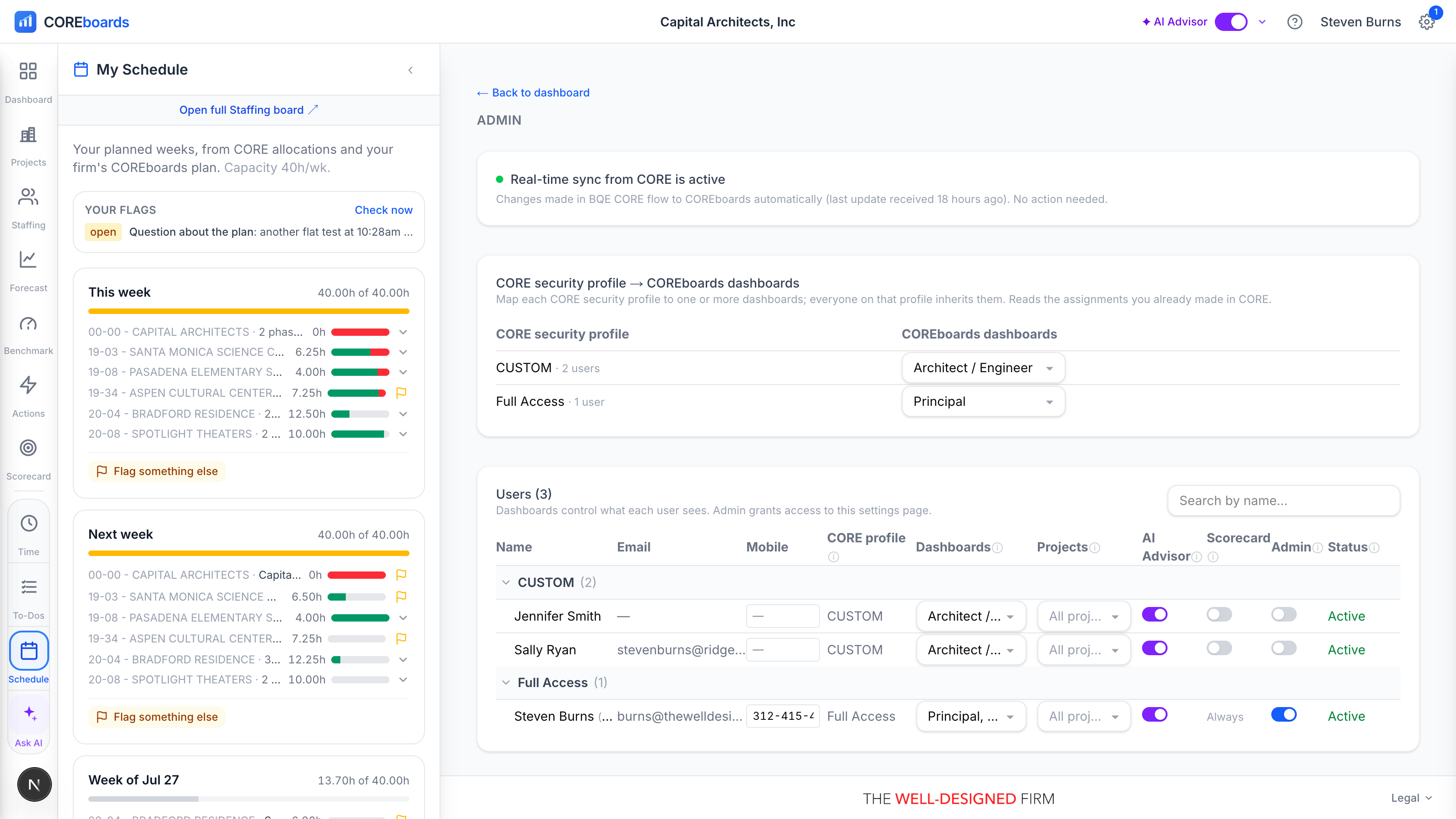
- Dashboards: override the profile mapping for one person. Assigning at least one board is what grants access to the app.
- Projects (only when your firm opts into project scoping): limit a person's dashboards to specific projects, for division segregation. “All projects” means no limit.
- AI Advisor: on by default. Switch it off to reserve AI use for certain people; it overrides that person's own Advisor settings until you switch it back.
- Scoreboard (only with the Scoreboard add-on): grant seats person by person. Admins always have access.
- Admin: access to this page. COREboards won't let the last admin be removed, and removing your own access asks you to confirm first.
- Status reads Active once a person has at least one dashboard or Admin; otherwise “No access yet.”
Staying in sync with CORE#
The roster maintains itself: COREboards mirrors your firm's active CORE employees. New people appear on their own, and people who leave CORE drop off. Admins are never removed automatically, so the keys can't be lost by accident.
Real-time updates
The card at the top of Admin shows whether real-time sync is flowing. Green means changes made in BQE CORE reach COREboards automatically. Amber means CORE isn't sending change notifications yet: CORE only sends them on connections made after COREboards set up its listener, so an early connection needs one re-grant.
- Click Reconnect firm to CORE, sign in to BQE CORE if asked, and approve access again. One time, about a minute, and the card turns green after the next change lands.
- Even without real-time sync, your data still refreshes every 30 minutes, or instantly with the dashboard's Refresh from CORE button.
Subscription#
Subscription (in your settings, for admins) is one firm subscription, priced per person: everyone gets a board, and there are no seats to buy or assign.
- Who counts: everyone with their own BQE CORE login. Never CORE licenses (sharing licenses doesn't change your price), and archived or deactivated people never count.
- Records without their own login don't count: a generic "Designer" used for billing, a consultant discipline like "Consultant MEP", or an outside consultant whose hours someone else enters. Open Subscription, click Who's counted? See the list, then No CORE login next to the record. COREboards checks CORE first and won't take off anyone who has signed in to COREboards or entered time, expenses or to-dos in CORE themselves; it tells you what to change in CORE instead.
- Contract staff and consultants are different: they count only when you give one of them access, in Users & Access. Your CORE vendor list is mostly subconsultant firms and payees rather than people, so none of it costs you anything until you decide someone needs a board.
- A floor applies: very small firms are billed at the minimum headcount, and the page says so before checkout.
- You see the price first: the page shows your exact counted headcount and total before any card is entered. Annual locks the price per person for 12 months. On either plan, people added beyond the seats you have paid for are billed for the rest of the term (the year, or the month) at your rate per person; nothing is refunded if people leave, and each renewal counts your headcount fresh.
- Manage subscription opens the secure Stripe portal to view invoices, update the card, or cancel. COREboards never sees or stores card numbers.
Getting teammates in#
Teammates sign in at coreboards.app with their own BQE CORE account; there is no separate password to create or forget.
- Invite your team (Admin → Users) lists everyone you pay for who has never signed in, grouped by dashboard, with the email from their CORE employee record. Untick anyone, then press Send: each person gets one email from COREboards in your name, with you as the reply-to. It says your firm set COREboards up and who did, shows what it does for them, and explains that they sign in on BQE CORE's own page with the login they already have. Anyone who hasn't signed in a week later gets one reminder, then nothing more.
- Someone with no email on their CORE employee record is listed but can't be ticked: add the email in CORE. Someone with no sign of a CORE login (no time or to-dos entered in CORE) is listed unticked, because they may not be able to sign in.
- See what they'll see opens COREboards as that person, before you send. Staff (Architect / Engineer) see no cost, margin or billing unless you turn it on for them.
- Invited by default: if people you pay for have never been invited, COREboards emails your admins a notice and invites them a week later, in the name of the admin who signed in most recently. Your dashboard and the panel show the date. Press Not yet to call it off for 30 days, or untick anyone to leave them out. Nothing is sent while staff sign-in is set to admins only. A new firm chooses this in setup with Invite them by email when your trial starts.
- While anyone you pay for has never been invited, your dashboard shows how many have signed in with an Invite button that opens the same list, and so does your Monday email and the renewal notice.
- When COREboards already emails someone who has never signed in (a to-do from their manager, or a note on their planned work), the email ends with a line telling them how to sign in.
- Anyone whose CORE security profile isn't mapped to a dashboard yet sees “You're almost in”: map their profile (or assign them a board directly) in Admin, then have them sign in again.
- A good rollout order: map the profiles first, then scan the Users table for anyone still reading “No access yet.”
Firm settings live in Settings#
A few firm-wide controls sit in Settings rather than here, editable by admins only: Dashboard names (rename any board to your firm's language, with a {name} token for the Architect / Engineer board), Attention thresholds (when tiles and staffing cells turn amber or red), the time-entry and staffing-capacity policies, the BQE CORE project links repair, and Connected apps. The Settings & preferences chapter covers each one.
Can't find it? Email support, or use Bugs & Requests in the app's gear menu.