
Help Center / Time Card
Logging time
The week grid, the calendar view, connected calendars, timers, and submitting your week to CORE. · 5 min read
Your week, already set up#
Open My Work in the sidebar; the Time Card tab is the first. The Log time pane shows your week as a grid: the phases you're scheduled on (pulled from your firm's staffing plan) down the side, the seven days across. Anything you've already logged appears too, so the grid is never empty on a planned week. Everything you enter saves straight to CORE.
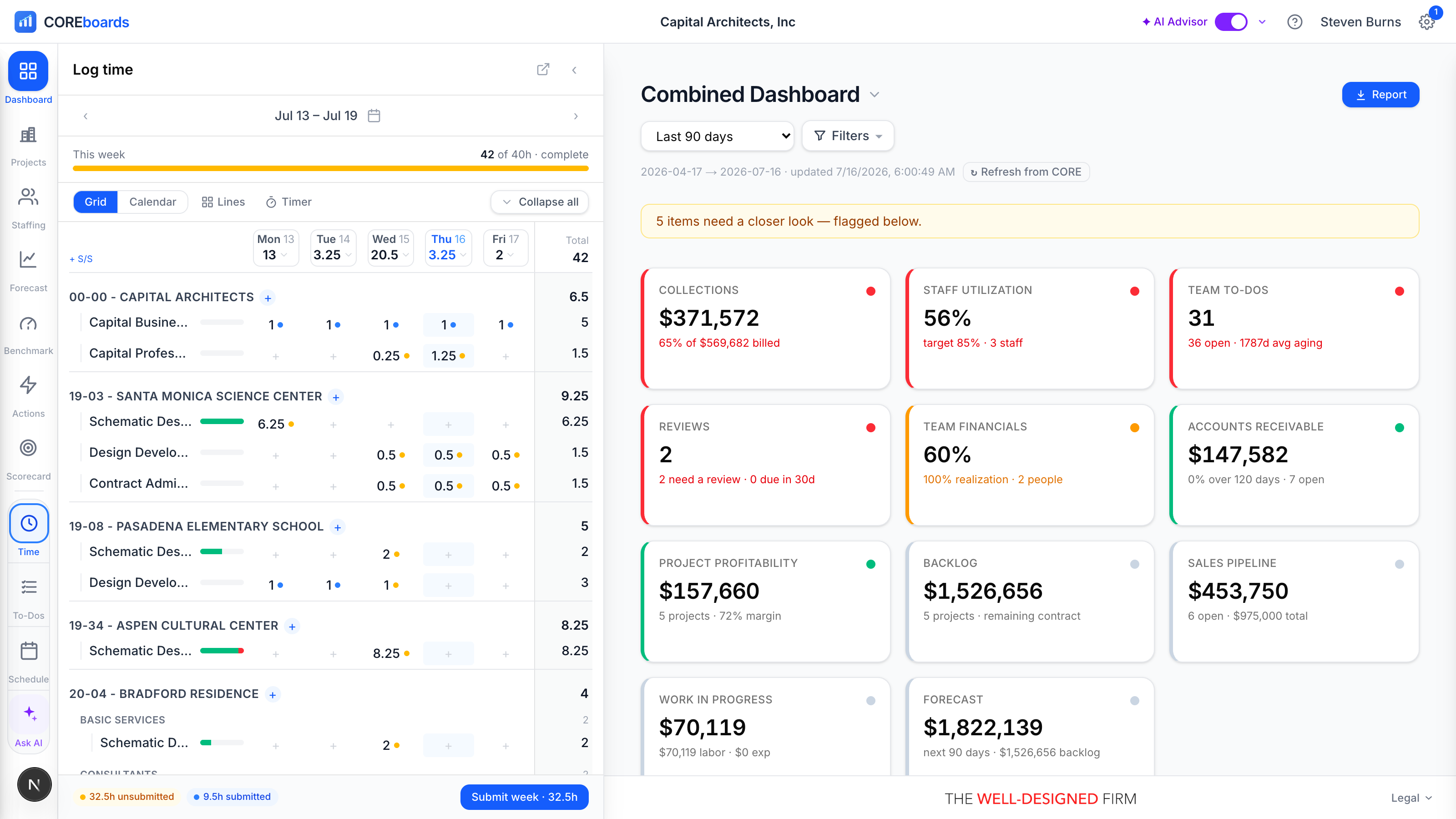
- The header tracks the week against your standard hours: 12 of 40h · 28h to go, with a progress bar that turns amber if you go over.
- Click any cell to log hours. The popover picks the activity, sets the billable flag, and takes a memo; More fields opens the deeper CORE options.
- Each scheduled row carries a small gauge of logged vs. planned hours, so you can see how the week is tracking phase by phase.
- Working on something unscheduled? Add project or phase opens your firm's full project tree, one click away.
- Copy last wk carries last week's entries onto the same weekdays, a fast starting point for a steady week.
Use the arrows by the week label to move between weeks, and Today to jump back. Past weeks are always open for logging; future weeks open up when your firm allows it (see the last topic).
The Calendar view#
Switch Grid to Calendar for an iCal-style day planner. The same entries appear as time blocks placed at their real start and stop times, which COREboards writes to CORE. A Week | Day control fits the view to your panel width.
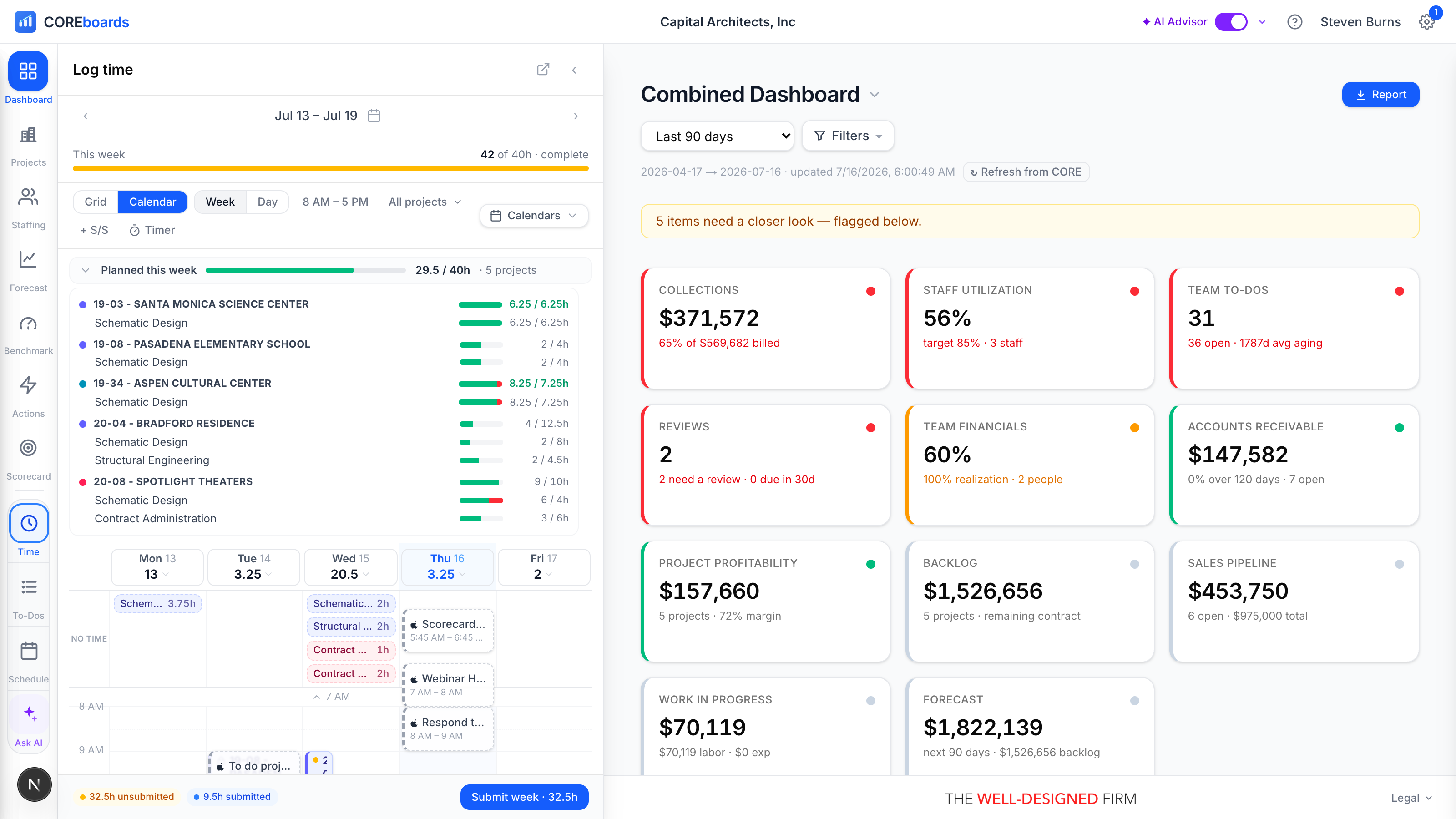
- Click or drag on a day to log time. The drag sets the start and stop; times snap to the quarter hour, CORE's smallest increment.
- Drag a block to move it, to another time or another day. Drag its bottom edge to change the hours.
- Drag the round handle sideways to copy an entry across days, or hold Option (or Command) while dragging to duplicate it, just like a desktop calendar.
- Entries logged without clock times (say, from the grid) sit in an unscheduled lane above the timeline. Drag one onto a day to give it a real time slot.
- Repeat an entry across a span of days and it becomes a series: later you can move or delete just one day, this and all future, or the whole series.
Saturdays and Sundays stay hidden until you show them (or until weekend hours exist), and you can narrow the visible hours and filter to one project to keep the view calm.
Your meetings become time entries#
Connect Google Calendar, Microsoft 365, or Apple Calendar (via a calendar link) from the Calendars menu in the Time pane, and the week's meetings appear as ghost chips alongside your real entries. Nothing is logged until you say so: you review each one.
- Click a ghost to open its card: COREboards suggests the project, phase, and activity, and you adjust before logging.
- Leave Remember checked when you log, and it learns: the next event like it arrives pre-mapped. What it's learned lists your rules; delete one that's wrong, or turn on Auto-log so matching events line up as ready to log in one batch.
- Dismiss a ghost that shouldn't become time (it stays reachable under Dismissed, and can be restored).
- Once an event is logged it moves to Logged, with the hours and phase its entry went to. Delete that time entry and the event returns as a suggestion, so nothing is lost by changing your mind.
- Connect more than one account and each event carries its provider's mark; you can show or hide each calendar separately, or hide all ghosts from the grid while keeping them in the review drawer.
Disconnecting a calendar never touches your logged time or your learned rules.
Timers#
Timer starts a live stopwatch on a phase: pick the project and activity, press Start timer, and get back to work. The running clock stays at the top of the pane, and it's a real CORE timer, so it's the same one CORE's own apps show.
- Stop & log ends the timer and logs the elapsed time for today, rounded up to the quarter hour.
- While it runs, expand the timer to retarget the project or activity, flip billable, correct the elapsed time, or add a note. Every change saves as you go.
Submit your week#
Time moves through CORE's approval pipeline, and the pane shows exactly where every hour sits. Chips along the bottom count the week by status: unsubmitted, submitted, approved, rejected, and billed. Cells carry a matching status dot, with the most actionable state on top (a rejection always shows).
- Submit week sends every unsubmitted entry to your approver in one click. Click a day's header to review just that day and Submit day instead.
- Submitting is reversible until a reviewer acts: any submitted entry offers Unsubmit, which pulls it back for editing.
- Rejected entries return to you; fix them and they ride along with the next submit.
- Approved entries stay editable. CORE changes an approved-but-unbilled entry in place and the approval survives, so nothing is un-approved and nobody is re-notified — which is what keeps your own timecard editable if your CORE profile auto-approves your time. Billed entries are locked; so is a submitted one until you unsubmit it.
Project rules, the pop-out, and future weeks#
- CORE project rules are honored. If a phase restricts time entry (only budgeted activities, hours capped at the allocation, time entry turned off), COREboards warns you up front, before you submit the entry. CORE has the final say either way, so nothing slips through.
- Pop out (the arrow in the pane header) opens your timecard in its own window, handy on a second monitor. From there, Install app turns it into a small desktop app you can keep in your dock.
- Logging on future weeks is a firm-level choice: a firm admin turns on Allow logging time on future weeks in Settings. Until then, future weeks are read-only.
Can't find it? Email support, or use Bugs & Requests in the app's gear menu.