
Help Center / Project Center
Project Center & Launch
Browse every CORE project in a gallery, open its home, and create new projects the guided way. · Managers · 20 min read
The gallery#
Project Center opens on a gallery of every CORE project: each card shows the project's cover image (or generated placeholder art until you add one), its status, phase count, contract, billed to date, and progress. Click any card to open the project.
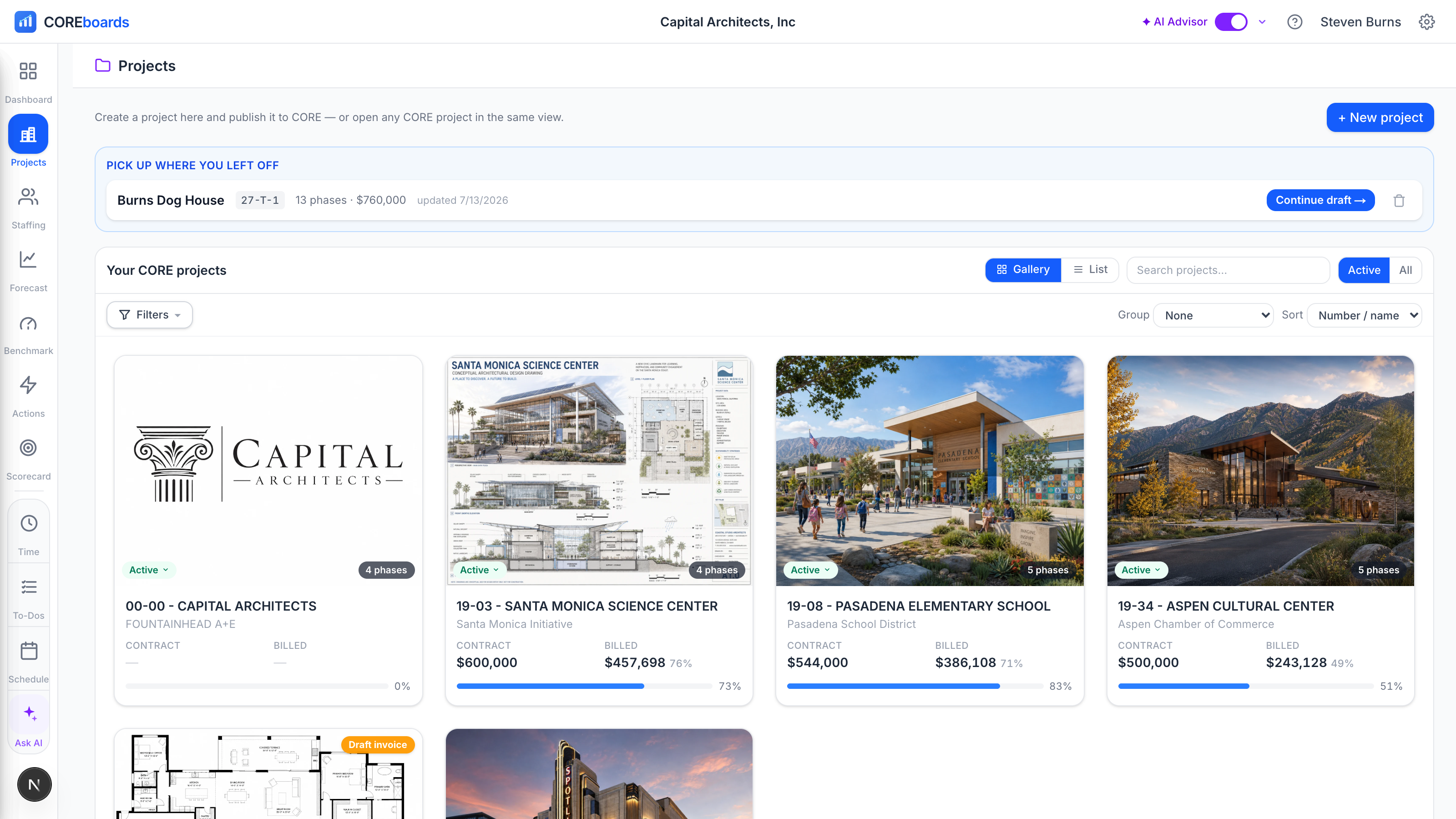
- Gallery or List: the toggle switches between cards and a table. The list nests each project's phases under it in CORE's structure order; expand a row to see them.
- Search, Active / All, and Filters: search by number, name, or client; show only active projects or everything; and filter by Status, Project Manager, Principal, Client, or Contract type (with saved presets, the same menu as Resource Allocation).
- Group and Sort arrange the whole page: group by Client, Project Manager, Principal, or Status, and sort by Number / name, Recent activity, Contract value, or Billed %. Your choices are remembered.
- The count beside the heading is how many projects are on screen, and "12 of 48" means the search and filters are hiding the rest.
- Viewing as appears when you hold more than one role, and is the same switcher (and the same remembered choice) as the dashboard and Resource Allocation. Switch to Project Manager and the gallery narrows to the projects CORE names you the manager of — what your PMs see when they open the Project Center.
- The status pill is live: click it on any card or row to change the project's (or a phase's) status, and the change writes straight to CORE.
Drafts you started in the wizard wait at the top under Pick up where you left off, with Continue draft to resume or a trash button to delete. + New project starts the Launch wizard.
A phase drifting from its fee or dates#
A project can look healthy as a whole while one phase runs past its fee or falls behind. COREboards names that phase instead of averaging it away.
- On the project cards, a chip names the phase and the fact, such as Schematic Design · 134% of fee, Construction Documents · behind schedule, or Design Development · fee runs out in 2 wk. A line above the list counts the projects with a drifting phase, and Show only those narrows the list to them. It sets Needs attention in Filters, so you can save it in a preset.
- On the project's Overview, a Needs attention card lists each drifting phase with its reason and three fixes: Re-plan opens a Resource Allocation focus session on that phase and brings you back, Change-order to-do puts a CORE to-do on the project manager's list, and Accept… records that the drift is known and agreed, with a note. The phase table opens the groups that hold those phases and marks their rows.
- What counts. Past its fee: work on the phase, valued at bill rates, has passed the phase fee. About to cross: at the last four weeks' pace it passes the fee within two weeks. Behind: CORE's % complete lags the time elapsed between the phase's CORE start and due dates. A phase past its due date and at least 95% complete is a close-out to watch, not an emergency. Hourly phases have no fee to run past and are not judged.
- On your dashboard, a project with several drifting phases is one row that names them; Open project takes you to its card.
Open a project: the Project Home#
Opening a project lands on its Overview: a canvas of tiles showing the project's vital signs. Drag the grip to reorder tiles or hide the ones you don't use; your arrangement is remembered per user.
- Contract & fee, Billed to date, Unbilled WIP, and Open AR: the four money vitals. Click one to open the records behind the number in a side panel.
- EAC margin (EVM) and the Earned value curve: where the project's profit is headed, and the whole life of the job in five running totals — Planned, Earned, Costs, Invoiced and Paid.
- Fee, Budget, Billed Health, Recent invoices, and To-dos: every phase's fee and what has actually been invoiced against it, its target and budgeted cost against what has actually been spent, and the margin on either basis (the old Budget Health tab, now here — its own topic below); the latest invoices with paid / open / draft state; and the project's open CORE to-dos.
- Notion: link one Notion page to the project and its notes and checkbox tasks surface right here, live from Notion. Setup and the full how-to live in the Connected apps chapter.
Tabs across the top go deeper: Overview, then Settings, Fees & Schedule, and Team & Budget (the wizard's own panels, now showing the live project), then Time and Billing (the project's billing sheet: fee, billed, unbilled and this invoice per phase, with the entries behind any unbilled figure one click away; see the Billing chapter).
Those panels are editable: change a fee, rename a phase, adjust the team. Edits stage locally, an amber bar counts your staged changes, and nothing writes to CORE until you press Review & publish to CORE (or Discard). If someone changes the project in CORE while your edits are staged, COREboards brings their changes into your draft wherever you did not change the same thing, including new, removed or reordered phases, hours and the project team, so publishing doesn't overwrite them with older values. A blue note says when this happened and lists anything that needs a look before you publish. When you opened the project from a filtered gallery, a peek rail alongside lets you hop between exactly those projects without going back.
Fee, Budget, Billed Health: which numbers are facts#
This tile on the Overview answers three questions in one row per phase: what the work is sold for, what it costs, and where that leaves the margin. The thing to understand before reading it is that half its columns are your plan and half are what has actually happened. Each column header says which, in small type under the name: PLAN, ACTUAL, or CALC. Every header also carries an (i) with the full definition, and Where these numbers come from under the table expands into the same explanation in prose.
The three groups
- Contract — Fee (plan: what the phase is sold for) next to Invoiced (actual: what CORE has really invoiced), % of fee comparing them, and Unbilled WIP (actual: billable time and expenses logged against the phase that no invoice has picked up yet).
- Cost — Target (calc: fee minus your Target Profit Margin %, so the most the phase can cost and still hit target — it is not a number you entered anywhere), Budgeted (plan: the hours planned on the Team & Budget tab, priced at cost rates), Over / under comparing those two, and Spent (actual: what the time records say, with a bar showing how much of the budget it has consumed).
- Result — the Margin, on whichever basis you pick.
Invoiced is invoices, not the value of the time
Invoiced reads CORE's invoices, excluding drafts and voids. It is deliberately *not* hours × bill rate: a fixed-fee phase invoices its fee no matter how many hours it took, and hours that were marked down or marked non-billable never reach an invoice. On a fixed-fee project the two can differ enormously, and the number here is the one the client was actually charged. (It includes reimbursable expenses and tax on the invoice line, so it can sit slightly above CORE's fee-only Billed column on the Structure screen.)
Spent is the matching fact on the cost side: every hour logged to the phase at its cost rate — billable and non-billable alike — plus expenses at cost, including time nobody has submitted or approved yet.
Unbilled WIP is the gap between those two: billable time and expenses sitting against the phase that no invoice has picked up yet, valued at bill rates. It is the same number as the Unbilled WIP tile on this Overview — the phase rows foot to it, and clicking the tile opens the records behind it. Non-billable time never appears here; that is a cost and only a cost. On a fixed-fee phase this is what the work is worth at rate card rather than what it will invoice for, so read it as what is sitting there to bill or write off. In the bullet column it is the pale end of the billed bar.
The two margins
The Margin control above the table chooses what the last column means, and the choice is remembered:
- To date — invoiced minus spent, divided by invoiced. Nothing but fact: what this phase has earned on the work done so far.
- At completion — fee minus (spent + the cost of the hours still booked on the Resource Allocation board), divided by fee. A projection, and only as honest as the schedule behind it.
At completion deliberately does not simply charge the whole budget against the phase. A phase that finished last year with nobody scheduled on it should not have its margin dragged down by an hours plan nobody trimmed; what matters is what is still coming.
Unstaffed, and the finished-but-still-booked flag
- A phase that is not complete and has nobody allocated reads UNSTAFFED instead of a margin. Spent-plus-booked would report a margin the phase has not earned — a 4%-complete phase with one logged hour would look wildly profitable. The gap is worth seeing: allocate the remaining work on the Resource Allocation board and the number fills in.
- A phase CORE calls 100% complete that still has hours booked gets an amber ⚠ beside its name. Either it is not really finished or the Resource Allocation board is carrying allocations that should be cleared, and until one of them changes the margin at completion is charging for work nobody expects to do. Hover the icon for the numbers.
- Clearing those bookings takes one click. Click the ⚠ — or the *hrs booked* line under the margin — and COREboards shows exactly what it found (hours, people, weeks, and the date range) and asks before doing anything. Confirming zeroes those person-weeks on the Resource Allocation board, handing the time straight back to everyone's availability. Hours already logged are never touched, and like every staffing edit it reaches CORE on the board's next publish, so re-planning the weeks undoes it.
Suggested Fixes read the plan
The plain-language fixes under the table — trim these hours, raise the fee by this much, this phase is over its allowable cost — are computed from the budget, not from actuals. On a project that is most of the way done, "reduce someone's hours" is advice about the plan, some of which may already be logged. The note under the list says so.
The Time tab: reviewing records, and which ones are locked#
The Time tab lists every time record in the project and its phases, whoever logged it and whatever state it is in. Filter by person, status, phase, or date range, group by employee, role, phase, or activity, and read the hours, billable value, and each entry's status. Like the other project panels, edits stage locally behind an amber bar and only reach CORE when you press Publish.
What each status means
The Status column shows where an entry sits in CORE's approval pipeline: Draft (logged, not yet submitted), Submitted (sent to an approver, awaiting review), Approved (a reviewer has signed off), Rejected (sent back by a reviewer), Billing review (CORE is holding it in its Billing Review screen), and Billed (marked billed in CORE, usually attached to an invoice).
- Draft and Submitted entries are editable here: change the phase, activity, client hours, or billable flag in place. When you publish, a submitted entry is quietly unsubmitted, updated, then resubmitted, so it lands back where it started.
- Approved entries are editable too, and nothing is un-approved to do it: CORE changes an approved-but-unbilled record in place and the approval survives, exactly as it does in CORE's own web app. No reviewer sign-off is reversed and no employee is notified.
- Billed entries are locked by CORE and read-only in this tab (no edit fields, no write-off link).
- Billing review entries are locked by CORE too, but they are not billed. CORE holds an entry this way once an invoice draft has referenced its phase, and refuses every change until someone releases it in CORE (Billing › Billing Review). It shows as its own chip and filter here so held time is never mistaken for invoiced time.
Changing an entry's status
In Edit mode the Status column becomes a control. A reviewer with a billing role can set an entry to Draft, Submitted or Approved right here; it stages like any other edit and publishes as CORE's own submit, approve, un-approve or unsubmit, in your name. Rejecting carries a note, so it stays in Approvals.
Approved time, and firms that auto-approve
Because approved records edit in place, an employee whose CORE profile auto-approves their time can still fix their own entries — in this tab, and in the Log time pane's Grid and Calendar views. Their time is approved the instant it is logged, so any other rule would lock them out of their own timecard. Un-approving stays a governance action that belongs in CORE, and COREboards never does it on your behalf; it simply is not needed to make an edit.
The write-off link
Under an editable (Draft or Submitted) entry's status is a write off link. Clicking it only stages a write-off (nothing reaches CORE yet), and an undo appears beside it. On the next Publish, a written-off entry is marked Billed in CORE (approved first if it was not already, since CORE will not bill an unapproved entry) and attached to the invoice covering its period, which clears it out of unbilled WIP. Because that writes to CORE's billing records, treat it as a real action, not a preview.
Launch a new project: Start and Basics#
+ New project opens the Launch wizard: Start, Basics, Structure & Fees, Team & Budget, Budget Health, Review & Create. A stepper on the left tracks where you are, and from Basics on, a live Budget Health card rides along on the right, recomputing with every edit. Everything autosaves as a draft; nothing touches CORE until the final step.
Start is one decision, three cards:
- Start from a template: your firm's saved templates plus the built-in starters. A template's schedule is slid forward so its phases begin today, and its defaults (margin, billing, default people) seed the draft.
- Clone a past project: pick from every CORE project, filtered by Project Manager, Principal, or billing method, with a live preview of the source's phase tree before you commit.
- Start from scratch: an empty tree, starting immediately.
Basics is the project's identity: Project ID (checked live against CORE for duplicates, with a one-click next-in-sequence suggestion), Project Name, Client (create a new CORE client inline if needed), Project Manager, Principal, Fee Schedule, and the Target Profit Margin % that every budget check measures against. The fee itself is set next, per phase, on Structure & Fees.
Structure & Fees#
One surface shapes the phase tree, chooses how each part bills, and prices it. Rows sit in structure order (the order CORE will show); drag a phase onto another to nest it, like a file into a folder.
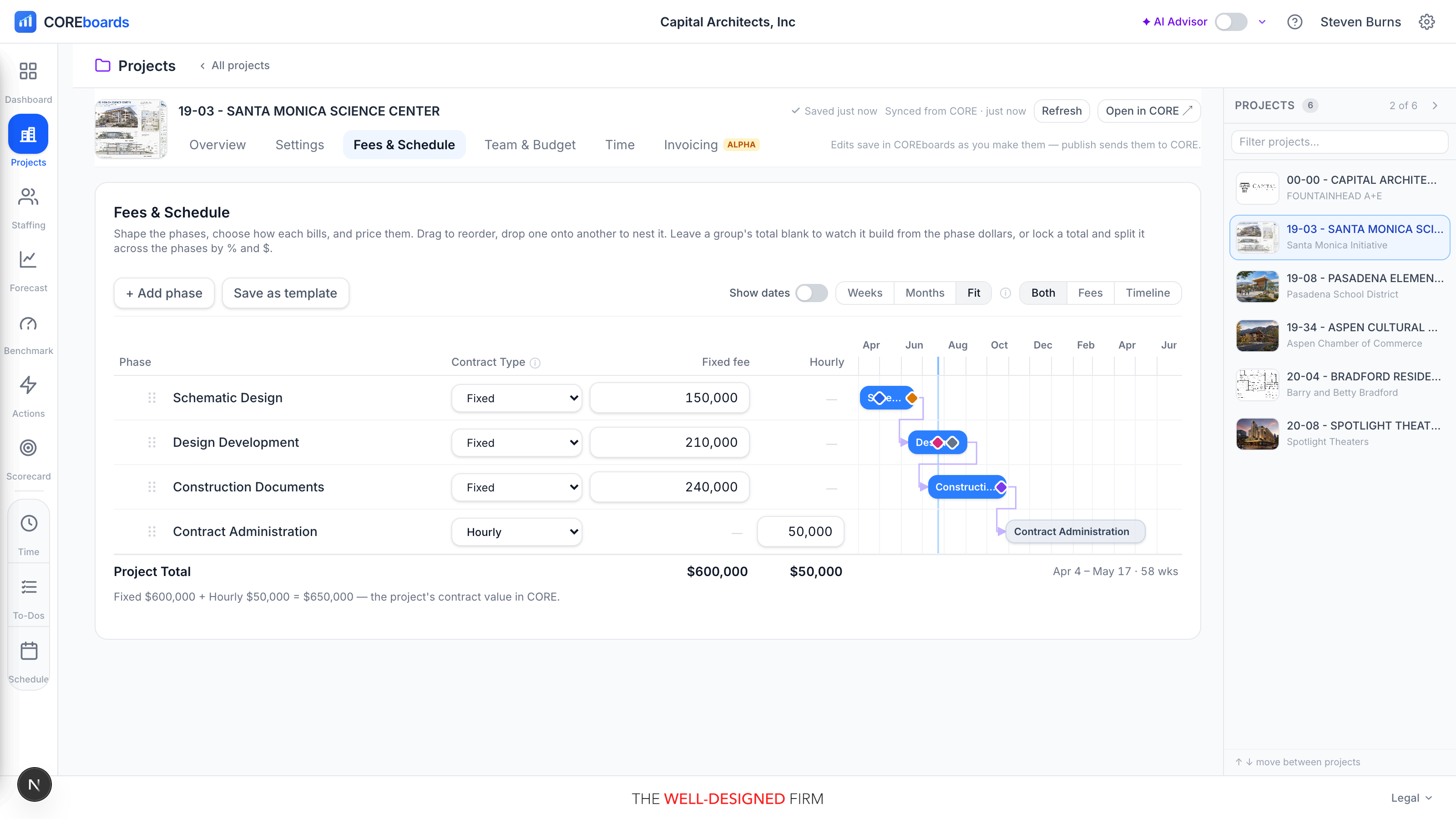
- Contract Type is chosen per top-level phase and publishes verbatim to CORE; sub-phases inherit it until you override one. Fixed phases inside a group split the group's fixed fee (by percentage or dollars); Hourly and Hourly Not to Exceed phases carry their own estimate or ceiling; Marketing and Overhead phases are non-billable.
- A fixed-fee group takes one total that its sub-phases split, and the row warns in red when the split is over or under 100%. Any other group itemizes: its fee is simply the sum of its sub-phases.
- The Project fee row at the top can hold the fee for the whole project, the way a group holds one for its phases. Type a total, or press the calculator and enter a percentage of a total, such as 8% of a $2,000,000 construction budget. The top-level Fixed phases then split it by percentage or pinned dollars, a group can take a share and split it again, and Hourly phases sit on top. The row warns when the phases are over or under the fee. Unlock it and the project goes back to the sum of its phases, with every phase keeping its dollars. Left blank, nothing changes: the project is the sum of its phases, as always.
- The Project Total is always derived from the top level of the tree, and becomes the project's contract value in CORE. When any phase bills hourly, the totals show Fixed and Hourly side by side. CORE receives each phase's fee in dollars; the percentage and construction budget are kept in COREboards and come back when the project reopens.
The Both | Fees | Timeline control shares the width between the pricing table and the schedule: Both shows them side by side, Fees gives the table the full width, Timeline gives the schedule the full width. On the timeline, drag a bar to move a phase and drag its ends to stretch it; the Show dates toggle seats each bar's start and end dates right under it.
Milestones put dated markers on a phase: client design reviews, an approval gate that lets the next phase start, a deliverable package going out, an internal pin-up. Click a phase's bar to open its editor and add one (name, date, type); it renders as a small diamond on the bar at its exact day. The type sets the diamond's color — or click the diamond swatch to pick your own — and the ✓ marks one done. Milestones are COREboards-only (CORE has no milestone field), so they save the moment you type, with no publish step.
- Milestones follow the schedule: when a phase's dates are published with a change, its open milestones shift proportionally — a review at week 6 of 12 stays at week 6 of the new 12. Done milestones are history and stay put.
- Set once, seen everywhere: the same milestones appear on the Resource Allocation board's week headers and phase bars, in every teammate's My Schedule, in the Monday email, and in the AI Advisor's read of the plan — which will flag a milestone week nobody is staffed to hit.
Team & Budget, then Budget Health#
Team & Budget works in two layers, mirroring how CORE models it:
- The project team is one list of who can work the project; it publishes as CORE Assignments. Leaving it empty is a valid choice: CORE's rule is that no assignments means anyone active in the firm can work it, and the step says so plainly.
- Hours planning is optional and per phase: plan hours for named people, vendors, or CORE groups (role placeholders like a production team), with rates autofilled from CORE and a per-phase Fee Schedule override. Planned phases publish as CORE Budgets plus allocations for scheduling, and an availability panel shows who actually has room.
Budget Health is the profit check: fee, labor, consultants, projected profit, and projected margin versus your Target Profit Margin %, for the project and for every phase (expand a group to see its sub-phases' own numbers). Plain-language Suggested Fixes point at over-budget phases, and one click jumps you back to Team & Budget with that phase open.
Planned hours here are what the Resource Allocation board calls budgeted, and the traffic runs one way: editing hours on this tab changes what that board says a phase still owes the calendar, while scheduling people over there never changes the hours you planned here. For the full picture, including what a [CB] COREboards plan line means if you ever spot one inside a CORE budget, see the Resource Allocation chapter.
Review & Create: the only step that writes#
Everything before this point is a draft, autosaved to COREboards a moment after each edit (watch for the quiet Saved indicator). Review & Create shows the read-only summary: identity, the phase tree with resolved fees and billing, the team, budget versus target, and any remaining warnings. Warnings are fine to proceed with; errors block the button until fixed.
Create in BQE CORE writes the real records: the project, every phase, the project team as CORE Assignments, and budgets and allocations for any planned hours. Every write is tracked in a ledger, so if CORE rejects something partway you get a per-step report with two calm options: Retry failed steps (skips what already exists, no duplicates) and Roll back what was created (best-effort delete, with anything CORE refuses listed for hand cleanup).
On success, the project is live in CORE under its Project ID: you'll find it in the CORE web app, in the Project Center gallery here, and on your COREboards dashboards after the next refresh from CORE. Open it from the gallery to give it a cover image and keep working in the Project Home.
Save a structure as a template#
Any structure worth repeating can become a firm template: press Save as template on Structure & Fees, or on Review & Create (saving a template never creates anything in CORE, so you can bank the structure and still decide whether to launch).
- A template keeps the phase tree, fees, billing methods, and defaults (Default Project Manager, Default Principal, Default Fee Schedule, Default Target Profit Margin %). Project ID, Name, and Client are left open, chosen each time it's used.
- Templates appear on the Start step under Start from a template, alongside the built-in starters, for everyone at your firm.
- When you start from a template, its whole schedule slides forward so the first phase begins today; edit freely from there, the template itself is untouched.
Can't find it? Email support, or use Bugs & Requests in the app's gear menu.