
Help Center / Getting around
Finding your way around
The header, the left sidebar, side panels, tours, and COREboards on your phone. · 8 min read
The header and the sidebar's footer#
The controls that follow you everywhere sit in two places: one in the header, and the rest pinned at the bottom of the sidebar. They're the same on every screen, so anything you set from one board applies to all of them.
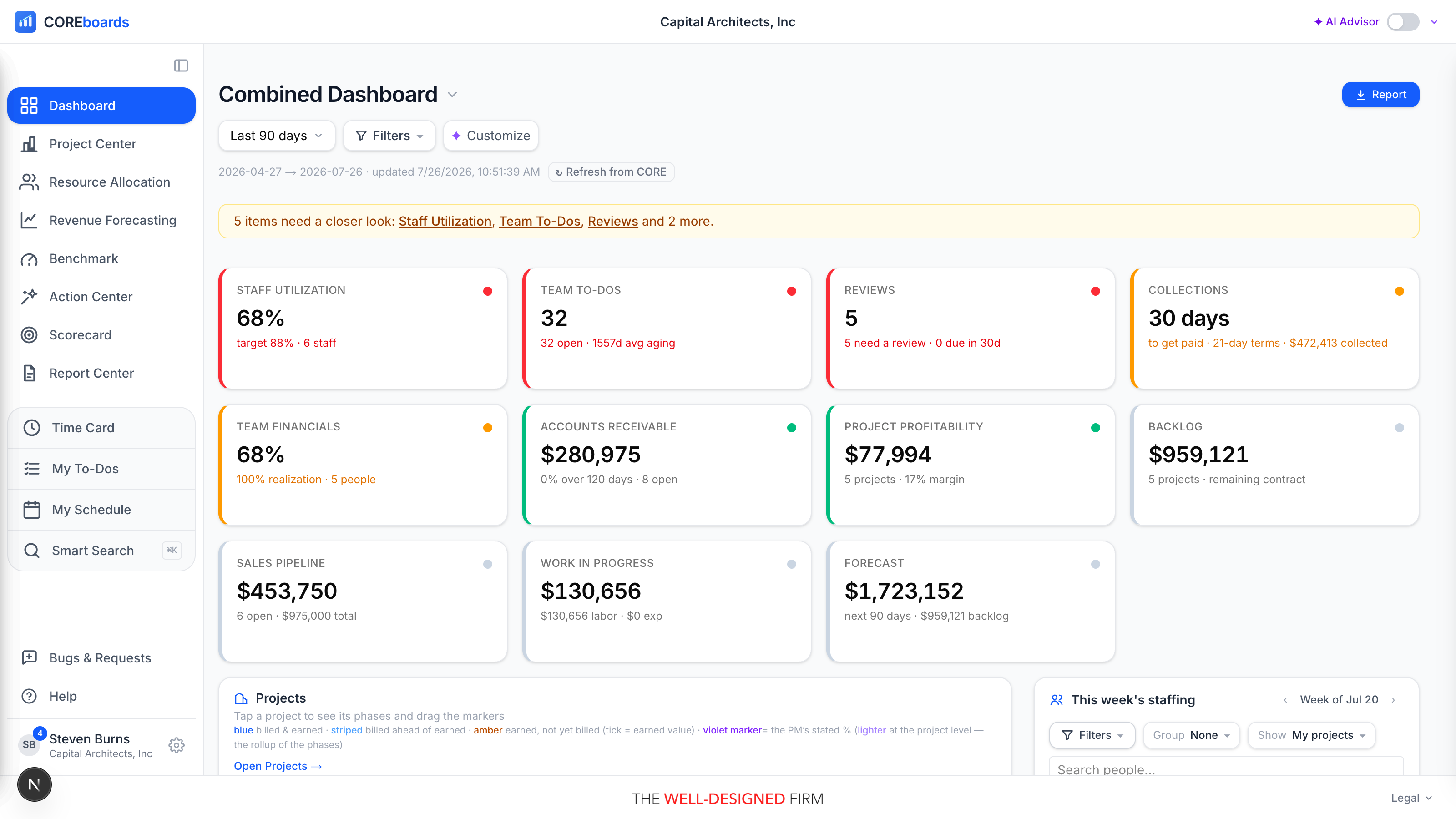
- ✦ AI Advisor (top right): one switch turns AI commentary on or off everywhere, and the arrow beside it opens per-surface checkboxes so you choose exactly where the Advisor appears (dashboard tiles, Resource Allocation, Revenue Forecasting, Ask your agent, and so on). If you don't see the switch at all, your firm admin has turned the Advisor off for your account.
- ? Help (sidebar, bottom): Bugs & Requests at the top, the direct line to us when something is broken or missing (a red count on Help means we've answered one of yours), then User guide opens the full Help Center (every topic, like a manual), Guide to this screen opens this same content beside your work opened to the page you're on, plus a guided tour of the screen you're on, replay the welcome tour, System status (our public uptime page, in a new tab), and Contact support.
- Your name (sidebar, very bottom): your photo (or initials) and your firm. Click it and your Settings open beside the sidebar — profile photo, mobile number, dashboard and email preferences, time entry, connected apps, Text size and theme, and Customize sidebar, with a jump list down the left. Admin and Subscription are there for firm admins (greyed out for everyone else, so you know where they live), along with Bugs & Requests and Sign out. The nav stays visible behind it, and closing puts you back where you were.
Set your photo in Settings → Profile photo. BQE CORE keeps its own employee picture that it doesn't share with other apps, so the one you upload here is the one COREboards uses.
Destinations and side panels#
The left sidebar has three zones: destinations, side panels below a divider, and your account pinned at the bottom. The first split is the key to the whole app.
Destinations (above the divider)
Full-page places. Clicking one replaces what's in the middle of the screen, and the one you're on shows as a solid blue row, so one glance always tells you where you are. Dashboard and Project Center sit on top; the rest are grouped under three short labels:
- Planning, what's coming: Opportunities, Resource Allocation, Revenue Forecasting. The work you're chasing, who will do it, and what it will earn.
- Insights, how you're doing: Scoreboard (against your own targets), Benchmark (against the industry) and Report Center (the detail). Tabs at the top of each move between the ones your role includes.
- Operations, running the firm: Billing, People, Money.
Printable guide: the whole-firm desks (PDF) ↗
Each section is one row. Point at it and its pages open beside the sidebar; pick one, or move away and it closes by itself. On a tablet, tap the row instead. The row shows a count when something inside needs you this week, and while you're on one of its pages the section lies open on the sidebar.
- Pin a section you use all the time: the pin at the top of its flyout lays its pages out on the sidebar under the label. Point at a pinned label and click its pin to put it back to one row. You can also pin sections from Customize sidebar.
Side panels (below the divider)
My Work, Approvals, Directory: your personal tools, grouped in a light dock. They don't replace the page; they slide out beside whatever you're doing, so you can log time or check your to-dos without losing your place on a board.
- My Work holds three tabs: Time Card, To-Dos and Schedule. It reopens on the tab you last used, and its count is the hours your time card is short (or, with none short, your to-dos due this week).
- Only one panel is open at a time. Clicking a different panel icon swaps the content in place; the panel's own ✕ closes it.
- An open panel shows a blue outline (a ring) around its row rather than a solid fill: present, but clearly lighter-weight than the page you're on.
- Search is the box at the top right of every page: projects, people, clients, invoices, reports, help and more. Click it or press ⌘K (Ctrl+K) and type; the results drop down beneath it, grouped, with ↑↓ to move, ←→ to switch groups and Enter to open. On a narrow window it is a magnifier that opens the same box. The ✦ beside it opens Ask your agent, and Tab with a search typed hands your words to your agent.
Your rail may be shorter#
The sidebar only shows what your role includes, so your rail can look different from a colleague's.
- Resource Allocation, Revenue Forecasting, and Project Center appear for editors (principals, studio leaders, project managers, and firm admins). Everyone else plans their own week from the Schedule tab of My Work instead.
- Billing, People and Money appear for the roles that run them, so many people never see the Operations section at all.
- Scoreboard appears for leadership roles. If your firm hasn't unlocked the Scoreboard add-on yet, eligible viewers see it with a small lock badge; clicking it opens a preview.
- The Ask your agent tab, and the ✦ beside the search box, appear only when the Advisor's Ask your agent surface is switched on for you.
Nothing is broken if a row is missing: it's role gating, not a glitch. Ask a firm admin if you think you should have access to a board you can't see.
Customize the sidebar#
The sidebar is yours to arrange. Your layout saves per user and follows you across devices, so your phone and your desktop always match.
- Drag rows on the sidebar itself to reorder them. A plain click still navigates; only a real drag moves things. Items reorder within their own section: a panel can never be dragged up among the destinations, and Benchmark can't leave Insights, though you can move the whole panels group above the navigation group if you prefer it on top.
- Pin the sections you use most (Pin open beside each section here, or the pin on the sidebar); the rest stay one row that opens on hover. The choice follows you like the rest of the layout.
- Hide what you never use from Customize sidebar (click your name at the bottom), which also offers the same reordering with a larger grip. Hidden items keep their spot and reappear exactly where they were when you unhide them.
- Dashboard can't be hidden: it's the home anchor, so the sidebar can never end up empty.
- Collapse it when you need the width. The button at the top of the sidebar shrinks it to icons — useful on Resource Allocation and other wide boards. Hovering an icon still names it, and the choice is remembered per user, on every device.
On a phone or tablet there's no drag; use the Customize sidebar dialog (or rearrange from a desktop) and the drawer follows the same order.
Tours and the guide#
The welcome tour starts automatically the first time you sign in: a one-minute orientation of the shell (the sidebar, your board, the AI switch, this help). Each board and panel then introduces itself with its own short tour the first time you open it, so you learn each screen where you actually use it. When a tour changes materially after an update, it offers itself once more.
- Replay any tour from the ? menu: the current screen's tour, or the welcome tour.
- Prefer no interruptions? Every auto-started tour card has a Don't auto-start tours link; tours then only run when you ask from the ? menu.
- Tours respect your role: steps about boards you don't have are skipped, never shown broken.
- This guide opens two ways from the ? menu: User guide takes you to the full Help Center with every topic, and Guide to this screen opens the side panel to the chapter for the screen you're on.
On your phone#
Everything works on a phone at coreboards.app, and the COREboards iOS app behaves exactly like the website: same sign-in, same boards, same data.
- The sidebar becomes a ☰ menu (top left) that slides in as a drawer, with the same labels. Your custom order and hidden items carry over. Help, Bugs & Requests and your account stay in the top-right corner on a phone, since there's no sidebar to pin them to.
- Side panels open full-screen instead of docking beside the page; close one to return to where you were.
- Tables and boards reflow into tap-friendly lists, and the Privacy Policy, Terms of Service, and a Contact link live at the bottom of the drawer.
Can't find it? Email support, or use Bugs & Requests in the app's gear menu.